
사용자 및 그룹 관리
- 사용자의 정의
- 로그인 대상
- 그룹: 사용자 계정의 집합
- UID
- GID
- 기본 그룹(주 그룹)
- 보조 그룹
- 1개 이상 소유 가능
사용자와 그룹 파일
- /etc/passwd
- 사용자 정보 저장
USER : x : UID : GID : GECOS : HOME : SHELL # GECOS: 주석 필드 - /etc/shadow
- 각 사용자 별 패스워드 저장
USER : HASH : LASTCHANGE : MIN : MAX : WARNING : INACTIVE : EXPIRE : BLANK # user:$6$.TDwbnua0j7gVg1r$HfQAKKvWPQ1XWJRnAuXx91laPryRktoWx.IMvO8eqN0OsnXItkhsfmA4nTFsAz05tFDGQONvh6tfuv8Ky8DeU0::0:99999:7::: - /etc/group
- 그룹 정보 저장
GROUP : x : GID : MEMBER
# wheel:x:10:user,testuser
# MEMBER: 해당 그룹이 보조 그룹으로 설정 되어 있는 사용자
# 백업 파일들
[user@localhost practice]$ ls -l /etc/passwd-
-rw-r--r--. 1 root root 1982 Sep 22 14:24 /etc/passwd-
[user@localhost practice]$ ls -l /etc/shadow-
----------. 1 root root 1098 Sep 22 14:24 /etc/shadow-
[user@localhost practice]$ ls -l /etc/group-
-rw-r--r--. 1 root root 819 Sep 22 14:25 /etc/group-
사용자 및 그룹 관리
- id <user-name>
- 사용자 정보 확인
[user@localhost practice]$ id uid=1000(user) gid=1000(user) groups=1000(user),10(wheel) context=unconfined_u:unconfined_r:unconfined_t:s0-s0:c0.c1023 [user@localhost practice]$ id root uid=0(root) gid=0(root) groups=0(root) # groups: 보조 그룹 - useradd [option] <user-name>
# 사용자 생성 기본 설정 [user@localhost practice]$ sudo useradd -D GROUP=100 HOME=/home INACTIVE=-1 EXPIRE= SHELL=/bin/bash SKEL=/etc/skel CREATE_MAIL_SPOOL=yes # /etc/skel: 사용자 환경설정 파일 [user@localhost practice]$ ls -al /etc/skel/ total 24 drwxr-xr-x. 3 root root 78 Sep 18 11:40 . drwxr-xr-x. 132 root root 8192 Sep 24 13:06 .. -rw-r--r--. 1 root root 18 Apr 30 2024 .bash_logout -rw-r--r--. 1 root root 141 Apr 30 2024 .bash_profile -rw-r--r--. 1 root root 492 Apr 30 2024 .bashrc drwxr-xr-x. 4 root root 39 Sep 18 11:40 .mozilla [user@localhost practice]$ cat /etc/default/useradd # useradd defaults file GROUP=100 HOME=/home INACTIVE=-1 EXPIRE= SHELL=/bin/bash SKEL=/etc/skel CREATE_MAIL_SPOOL=yes # 필요 시 useradd에 옵션을 활용해서 커스텀하게 생성 [user@localhost practice]$ sudo useradd -u 1020 user02 # -u: uid [user@localhost practice]$ id user02 uid=1020(user02) gid=1020(user02) groups=1020(user02) # -g: gid # gid의 경우 group을 먼저 생성하고 지정해야함 (보조그룹도 동일) # -d: 홈 디렉토리 # -c: comment(GECOS) # -s: 사용자 기본 쉘 [user@localhost practice]$ sudo useradd -s /sbin/nologin user-svc - [user@localhost practice]$ sudo useradd user01 [user@localhost practice]$ tail -n1 /etc/passwd user01:x:1003:1003::/home/user01:/bin/bash [user@localhost practice]$ tail -n1 /etc/group user01:x:1003: [user@localhost practice]$ id user01 uid=1003(user01) gid=1003(user01) groups=1003(user01) # 그룹을 따로 생성/지정하지 않아도 자동으로 생성됨 [user@localhost practice]$ sudo tail -n1 /etc/shadow user01:!!:20355:0:99999:7::: # !!: 패스워드 미설정
- usermod [option] <user-name>
- # -aG: 보조그룹을 추가 # -G만 쓸 경우 기존 보조그룹 정보가 삭제되므로 두 옵션을 함께 쓰는 것을 권장
- userdel -r <user-name>
- userdel [option] <user-name>
# 옵션 없이 실행하면 해당 사용자의 홈 디렉토리는 남아있음 # -r 옵션을 함께 사용 # 1. 디스크 공간 절약 # 2. 권한이 넘어가는 것을 방지 [user@localhost practice]$ sudo userdel user01 [user@localhost practice]$ id user01 id: ‘user01’: no such user [user@localhost practice]$ ls -ld /home/user01 drwx------. 3 1003 1003 78 Sep 24 13:06 /home/user01 [user@localhost practice]$ sudo useradd -u 1003 hacker [user@localhost practice]$ ls -ld /home/user01 drwx------. 3 hacker hacker 78 Sep 24 13:06 /home/user01 - groupadd [option] <group-name>
- groupmod [option] <group-name>
- groupdel <group-name>
[user@localhost practice]$ sudo usermod -G '' test-user
[user@localhost practice]$ id test-user
uid=1023(test-user) gid=1023(basic-group) groups=1023(basic-group)
[user@localhost practice]$ sudo usermod -G basic-group user03
[user@localhost practice]$ id test-user
uid=1023(test-user) gid=1023(basic-group) groups=1023(basic-group)
[user@localhost practice]$ id user03
uid=1021(user03) gid=1021(user03) groups=1021(user03),1023(basic-group)
[user@localhost practice]$ ls -l /tmp/new-user.txt
-rw-r-----. 1 test-user basic-group 6 Sep 24 14:19 /tmp/new-user.txt
- chown
[user03@localhost ~]$ touch myfile
[user03@localhost ~]$ ls -l
total 0
-rw-r--r--. 1 user03 user03 0 Sep 24 14:28 myfile
[user03@localhost ~]$ chown root myfile
chown: changing ownership of 'myfile': Operation not permitted
[user03@localhost ~]$ chown :basic-group myfile
[user03@localhost ~]$ ls -l
total 0
-rw-r--r--. 1 user03 basic-group 0 Sep 24 14:28 myfile
# 사용자가 속한 그룹 안에서 변경 가능
[user@localhost practice]$ touch myfile
[user@localhost practice]$ ls -l myfile
-rw-r--r--. 1 user user 0 Sep 24 14:31 myfile
[user@localhost practice]$ sudo chown root:basic-group myfile
[user@localhost practice]$ ls -l myfile
-rw-r--r--. 1 root basic-group 0 Sep 24 14:31 myfile
사용자 전환
- su [-] [user-name]
- switch user
- [user-name] 생략 시 root 사용자로 전환
- [-]를 생략하면 환경변수가 전환되지 않음
[user@localhost practice]$ ls -l /etc/sudoers
-r--r-----. 1 root root 4328 Feb 15  2024 /etc/sudoers
[user@localhost practice]$ ls -l /etc/sudoers.d/
ls: cannot open directory '/etc/sudoers.d/': Permission denied
[user@localhost practice]$ sudo ls -l /etc/sudoers.d/
[sudo] password for user:
total 0
- sudo : wheel 그룹 사용 가능 또는 /etc/sudoers에서 설정 가능
패스워드 속성 변경
- passwd
- 현재 사용자 비밀번호 초기화
- sudo passwd <user-name>
- 사용자 비밀번호 초기화
- sudo usermod
- -L : 잠금 설정
- 해당 계정은 shadow 파일 확인 시 비밀번호 해시 앞에 ! 붙음
- -U : 잠금 해제
- 활용: 일시적인 계정 잠금/해제 시 사용
- -L : 잠금 설정
- chage
- change age
- -l : 해당 사용자의 설정값
- -d: (/etc/shadow 필드 중) LASTCHANGE 수정
- 활용: -d 0 으로 지정해서 해당 계정의 패스워드를 강제로 바꾸도록 함
[user@localhost practice]$ chage -l user Last password change : never Password expires : never Password inactive : never Account expires : never Minimum number of days between password change : 0 Maximum number of days between password change : 99999 Number of days of warning before password expires : 7- -m 1: 최소 1일동안 변경 불가
- -M 10: 최대 10일동안 사용 가능
- -W 3: 만료되기 3일 전부터 경고
- -I 3: 만료 이후 3일의 추가 기간을 부여
- -E 2025-09-24: 만료 날짜를 특정 날짜로 지정 (단위: YYYY-MM-DD)
고급 권한 관리
ACL(Access Control List) - 중요도 낮음
활용: 단일 파일의 특별한 권한 관리가 필요한 경우
우분투에 없음
확장 권한
- setuid
- 스크립트 파일 사용 가능
[user@localhost ~]$ sudo ls -l /usr/bin/passwd [sudo] password for user: -rw**s**r-xr-x. 1 root root 32656 May 15 2022 /usr/bin/passwd [user@localhost ~]$ sudo ls -l /usr/bin/chage -rw**s**r-xr-x. 1 root root 73704 Apr 27 11:48 /usr/bin/chage [user@localhost ~]$ sudo ls -l /etc/shadow ----------. 1 root root 1402 Sep 25 10:25 /etc/shadow # passwd, chage 명령어 실행 시 shadow에 작업 내용을 작성해야 하기 때문에 setuid 권한이 부여됨 # user 권한으로 실행해도 ps 명령어로 확인해보면 root로 실행되어 있음 # 위처럼 잠시동안 빌려온 사용자의 UID를 EUID(Effective UID)라고 함 - setgid
- 파일에는 잘 설정하지 않음
- 디렉토리에 설정됨
- 파일을 생성하는 경우 소유 그룹이 생성자의 기본 그룹으로 생성되지 않고 디렉토리에 설정된 setgid 그룹으로 생성됨(상속)
- 새로 만드는 파일에 한정
[user@localhost ~]$ ls -ld /run/log/journal/ drwxr-**s**r-x+ 3 root systemd-journal 60 Sep 25 11:06 /run/log/journal/ [user@localhost ~]$ ls -ld /run/log/journal/ drwxr-sr-x+ 3 root **systemd-journal** 60 Sep 25 11:06 /run/log/journal/ [user@localhost ~]$ sudo touch /run/log/journal/testfile [sudo] password for user: [user@localhost ~]$ ls -l /run/log/journal/testfile -rw-r--r--+ 1 root **systemd-journal** 0 Sep 25 11:24 /run/log/journal/testfile - sticky bit
- 파일의 소유자만 파일 삭제 가능
- /tmp 디렉토리
[user@localhost ~]$ ls -ld /tmp
drwxrwxrw**t**. 17 root root 4096 Sep 25 11:24 /tmp
확장 권한 설정
[user@localhost ~]$ touch test-setuid test-setgid test-stickybit
[user@localhost ~]$ mkdir test-setuid-dir test-setgid-dir test-stickybit-dir
[user@localhost ~]$ ls -l test-s*
-rw-r--r--. 1 user basic-group 0 Sep 25 11:32 test-setgid
-rw-r--r--. 1 user basic-group 0 Sep 25 11:32 test-setuid
-rw-r--r--. 1 user basic-group 0 Sep 25 11:32 test-stickybit

test-setgid-dir:
total 0

test-setuid-dir:
total 0

test-stickybit-dir:
total 0
[user@localhost ~]$ ls -ld test-s*
-rw-r--r--. 1 user basic-group 0 Sep 25 11:32 test-setgid
drwxr-xr-x. 2 user basic-group 6 Sep 25 11:32 test-setgid-dir
-rw-r--r--. 1 user basic-group 0 Sep 25 11:32 test-setuid
drwxr-xr-x. 2 user basic-group 6 Sep 25 11:32 test-setuid-dir
-rw-r--r--. 1 user basic-group 0 Sep 25 11:32 test-stickybit
drwxr-xr-x. 2 user basic-group 6 Sep 25 11:32 test-stickybit-dir
[user@localhost ~]$ chmod u+s test-setuid*
[user@localhost ~]$ ls -ld test-setuid*
-rw**S**r--r--. 1 user basic-group 0 Sep 25 11:32 test-setuid # 실행 권한이 부여되지 않아 대문자 S로 출력됨
drw**s**r-xr-x. 2 user basic-group 6 Sep 25 11:32 test-setuid-dir
[user@localhost ~]$ chmod u+x test-setuid # 실행 권한 부여
[user@localhost ~]$ ls -ld test-setuid*
-rwsr--r--. 1 user basic-group 0 Sep 25 11:32 test-setuid # 다른 사용자의 실행 권한이 없어서 의미가 없는 상태
drwsr-xr-x. 2 user basic-group 6 Sep 25 11:32 test-setuid-dir
[user@localhost ~]$ chmod a+x test-setuid # 모든 사용자에게 실행 권한을 부여
[user@localhost ~]$ chmod u+s test-setuid
[user@localhost ~]$ ls -l test-setuid
-rwsr-xr-x. 1 user basic-group 0 Sep 25 11:32 test-setuid
[user@localhost ~]$
chmod 4777 # setuid
chmod 2777 # setgid
chmod 1777 # sticky bit
chmod 0777 # 삭제
실습 과제
- 스크립트 파일 실행 시 기타 사용자가 실행 권한이 있더라도 읽기 권한이 있어야 실행이 가능
- 쉘 스크립트 파일의 경우 setuid 설정을 하더라도 ps 실행 시 실행한 사용자의 이름이 보임
- 정확히는 setuid가 적용이 안되는 것
- sudo **-u testuser** touch /tmp/public-dir/tesetuser-file
작업 스케줄링
- at
- at + 시간 지정
- 활용: 나중에 실행해야 하는 단발성 작업
- 주의: 데몬 프로세스에서 실행됨
- echo 처럼 출력하면 확인이 어려움
- redirect를 사용해 파일로 저장
- atq
- 예약 내역 확인
[user@localhost ~]$ at now +1min warning: commands will be executed using /bin/sh at> echo "test at" > /tmp/atfile at> <EOT> # ctrl + d 로 종료 job 1 at Thu Sep 25 14:35:00 2025 - crontab -e
- 편집기에 예약 작업 작성
- 각 사용자가 자신의 작업 예약
- 시스템 작업 예약: /etc/crontab
- root 사용자
- -l: 확인
- -r: 삭제
- -e: 수정
# MIN  HOUR  DAY  MONTH  DAYS           COMMAND
# 0-59 0-23 1-31  1-12  0-7(0,7:SUN)
#                       Mon-Fri
# Number or * or Range(1-3) or */2 or 1,2,3
47 14 25 9 4 echo "test cron" > /tmp/cronfile
[user@localhost ~]$ crontab -l # MIN HOUR DAY MONTH DAYS COMMAND 47 14 25 9 4 echo "test cron" > /tmp/cronfile - anacron
- cron : 시간 지정, 반복 실행
- 실행을 못하면(ex. 재부팅) 건너뛰게 됨
- anacron: 일정 주기로 작업 실행
- 부팅 시간 기준/시간 간격/하루 단위
- 실행을 못하면(ex. 재부팅) 부팅 이후 실행
- cron : 시간 지정, 반복 실행
디스크 관리
- 구조

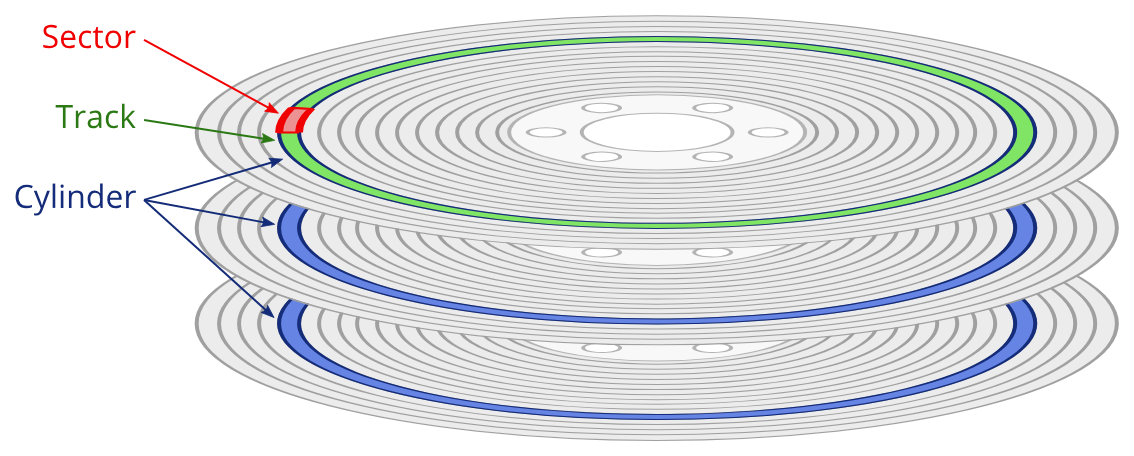
- 디스크 이름 및 확인
- 파티셔닝
- fdisk: MBR 파티셔닝 도구
- gdisk: GPT 파티셔닝 도구
- parted: 둘다 지원
- 스크립트 작성 필요 시 사용 용이
- 그 외에는 어떤 도구든 상관없음
VirtualBox 하이퍼바이저의 네트워크
- NAT
- 가상머신이 인터넷 가능 (포트포워딩 설정 시 외부에서 접속 가능)
- IP 주소 및 게이트웨이 등이 고정
- NAT network
- 인터넷 + 가상머신끼리 통신 가능
- HostOnly
- 인터넷 불가, 가상머신끼리 통신 가능 + 외부에서 접속 가능
- Bridge
- 실제 컴퓨터가 사용하는 네트워크 대역을 할당
[user@localhost ~]$ lsblk
NAME        MAJ:MIN RM  SIZE RO TYPE MOUNTPOINTS
sda           8:0    0   20G  0 disk
├─sda1        8:1    0    1G  0 part /boot
└─sda2        8:2    0   19G  0 part
  ├─rl-root 253:0    0   17G  0 lvm  /
  └─rl-swap 253:1    0    2G  0 lvm  [SWAP]
sdb           8:16   0   20G  0 disk
sdc           8:32   0   20G  0 disk
sr0          11:0    1 1024M  0 rom
[user@localhost ~]$ ls -l /dev/sda
brw-rw----. 1 root disk 8, 0 Sep 25 16:34 /dev/sda
[user@localhost ~]$ ls -l /dev/sdb
brw-rw----. 1 root disk 8, 16 Sep 25 16:34 /dev/sdb
[user@localhost ~]$ ls -l /dev/sdc
brw-rw----. 1 root disk 8, 32 Sep 25 16:34 /dev/sdc
# dev: block device
디스크 관리
# 디스크 확인
[user@localhost ~]$ lsblk
NAME        MAJ:MIN RM  SIZE RO TYPE MOUNTPOINTS
sda           8:0    0   20G  0 disk
├─sda1        8:1    0    1G  0 part /boot
└─sda2        8:2    0   19G  0 part
  ├─rl-root 253:0    0   17G  0 lvm  /
  └─rl-swap 253:1    0    2G  0 lvm  [SWAP]
sdb           8:16   0   20G  0 disk
sdc           8:32   0   20G  0 disk
sr0          11:0    1 1024M  0 rom
# fdisk 디스크 확인
[user@localhost ~]$ sudo fdisk -l

Disk /dev/sda: 20 GiB, 21474836480 bytes, 41943040 sectors
Disk model: VBOX HARDDISK
Units: sectors of 1 * 512 = 512 bytes
Sector size (logical/physical): 512 bytes / 512 bytes
I/O size (minimum/optimal): 512 bytes / 512 bytes
Disklabel type: dos
Disk identifier: 0x7e2d2eef

Device     Boot   Start      End  Sectors Size Id Type
/dev/sda1  *       2048  2099199  2097152   1G 83 Linux
/dev/sda2       2099200 41943039 39843840  19G 8e Linux LVM

Disk /dev/sdb: 20 GiB, 21474836480 bytes, 41943040 sectors
Disk model: VBOX HARDDISK
Units: sectors of 1 * 512 = 512 bytes
Sector size (logical/physical): 512 bytes / 512 bytes
I/O size (minimum/optimal): 512 bytes / 512 bytes

Disk /dev/sdc: 20 GiB, 21474836480 bytes, 41943040 sectors
Disk model: VBOX HARDDISK
Units: sectors of 1 * 512 = 512 bytes
Sector size (logical/physical): 512 bytes / 512 bytes
I/O size (minimum/optimal): 512 bytes / 512 bytes

Disk /dev/mapper/rl-root: 17 GiB, 18249416704 bytes, 35643392 sectors
Units: sectors of 1 * 512 = 512 bytes
Sector size (logical/physical): 512 bytes / 512 bytes
I/O size (minimum/optimal): 512 bytes / 512 bytes

Disk /dev/mapper/rl-swap: 2 GiB, 2147483648 bytes, 4194304 sectors
Units: sectors of 1 * 512 = 512 bytes
Sector size (logical/physical): 512 bytes / 512 bytes
I/O size (minimum/optimal): 512 bytes / 512 bytes

# fdisk
[user@localhost ~]$ sudo fdisk /dev/sdb

Welcome to fdisk (util-linux 2.37.4).
Changes will remain in memory only, until you decide to write them.
Be careful before using the write command.

Device does not contain a recognized partition table.
Created a new DOS disklabel with disk identifier 0x5f4c488e.

Command (m for help): m

Help:

  DOS (MBR)
   a   toggle a bootable flag
   b   edit nested BSD disklabel
   c   toggle the dos compatibility flag

  Generic
   **d   delete a partition**
   F   list free unpartitioned space
   l   list known partition types
   **n   add a new partition
   p   print the partition table**
   t   change a partition type
   v   verify the partition table
   i   print information about a partition

  Misc
   m   print this menu
   u   change display/entry units
   x   extra functionality (experts only)

  Script
   I   load disk layout from sfdisk script file
   O   dump disk layout to sfdisk script file

  Save & Exit
   **w   write table to disk and exit
   q   quit without saving changes**

  Create a new label
   g   create a new empty GPT partition table
   G   create a new empty SGI (IRIX) partition table
   o   create a new empty DOS partition table
   s   create a new empty Sun partition table

Command (m for help):
MBR 방식 실습
Command (m for help): n
Partition type
   p   primary (0 primary, 0 extended, 4 free)
   e   extended (container for logical partitions)
Select (default p): p
Partition number (1-4, default 1): 1
First sector (2048-41943039, default 2048):
Last sector, +/-sectors or +/-size{K,M,G,T,P} (2048-41943039, default 41943039): 40000

Created a new partition 1 of type 'Linux' and of size 18.5 MiB.

Command (m for help): d
Selected partition 1
Partition 1 has been deleted.

Command (m for help): n
Partition type
   p   primary (0 primary, 0 extended, 4 free)
   e   extended (container for logical partitions)
Select (default p):

Using default response p.
Partition number (1-4, default 1):
First sector (2048-41943039, default 2048):
Last sector, +/-sectors or +/-size{K,M,G,T,P} (2048-41943039, default 41943039): +1G

Created a new partition 1 of type 'Linux' and of size 1 GiB.

Command (m for help): p
Disk /dev/sdb: 20 GiB, 21474836480 bytes, 41943040 sectors
Disk model: VBOX HARDDISK
Units: sectors of 1 * 512 = 512 bytes
Sector size (logical/physical): 512 bytes / 512 bytes
I/O size (minimum/optimal): 512 bytes / 512 bytes
Disklabel type: dos
Disk identifier: 0x55e9249e

Device     Boot Start     End Sectors Size Id Type
/dev/sdb1        2048 2099199 2097152   1G 83 Linux

Command (m for help): n
Partition type
   p   primary (1 primary, 0 extended, 3 free)
   e   extended (container for logical partitions)
Select (default p):

Using default response p.
Partition number (2-4, default 2):
First sector (2099200-41943039, default 2099200):
Last sector, +/-sectors or +/-size{K,M,G,T,P} (2099200-41943039, default 41943039): +1G

Created a new partition 2 of type 'Linux' and of size 1 GiB.

Command (m for help): n
Partition type
   p   primary (2 primary, 0 extended, 2 free)
   e   extended (container for logical partitions)
Select (default p):

Using default response p.
Partition number (3,4, default 3):
First sector (4196352-41943039, default 4196352):
Last sector, +/-sectors or +/-size{K,M,G,T,P} (4196352-41943039, default 41943039): +1G

Created a new partition 3 of type 'Linux' and of size 1 GiB.

Command (m for help): p
Disk /dev/sdb: 20 GiB, 21474836480 bytes, 41943040 sectors
Disk model: VBOX HARDDISK
Units: sectors of 1 * 512 = 512 bytes
Sector size (logical/physical): 512 bytes / 512 bytes
I/O size (minimum/optimal): 512 bytes / 512 bytes
Disklabel type: dos
Disk identifier: 0x55e9249e

Device     Boot   Start     End Sectors Size Id Type
/dev/sdb1          2048 2099199 2097152   1G 83 Linux
/dev/sdb2       2099200 4196351 2097152   1G 83 Linux
/dev/sdb3       4196352 6293503 2097152   1G 83 Linux
주의사항
4번째 파티션은 항상 확장 파티션을 쓴다
확장 파티션 - 논리적 파티션 생성 예약 개념
때문에 Last sector도 기본값을 사용
Command (m for help): n
Partition type
   p   primary (3 primary, 0 extended, 1 free)
   e   extended (container for logical partitions)
Select (default e):

Using default response e.
Selected partition 4
First sector (6293504-41943039, default 6293504):
Last sector, +/-sectors or +/-size{K,M,G,T,P} (6293504-41943039, default 41943039):

Created a new partition 4 of type 'Extended' and of size 17 GiB.

Command (m for help): p
Disk /dev/sdb: 20 GiB, 21474836480 bytes, 41943040 sectors
Disk model: VBOX HARDDISK
Units: sectors of 1 * 512 = 512 bytes
Sector size (logical/physical): 512 bytes / 512 bytes
I/O size (minimum/optimal): 512 bytes / 512 bytes
Disklabel type: dos
Disk identifier: 0x55e9249e

Device     Boot   Start      End  Sectors Size Id Type
/dev/sdb1          2048  2099199  2097152   1G 83 Linux
/dev/sdb2       2099200  4196351  2097152   1G 83 Linux
/dev/sdb3       4196352  6293503  2097152   1G 83 Linux
/dev/sdb4       6293504 41943039 35649536  17G  5 Extended

Command (m for help): n
All primary partitions are in use.
Adding logical partition 5 # 자동으로 5번이 설정됨
First sector (6295552-41943039, default 6295552):
Last sector, +/-sectors or +/-size{K,M,G,T,P} (6295552-41943039, default 41943039): +2G

Created a new partition 5 of type 'Linux' and of size 2 GiB.

Command (m for help): p
Disk /dev/sdb: 20 GiB, 21474836480 bytes, 41943040 sectors
Disk model: VBOX HARDDISK
Units: sectors of 1 * 512 = 512 bytes
Sector size (logical/physical): 512 bytes / 512 bytes
I/O size (minimum/optimal): 512 bytes / 512 bytes
Disklabel type: dos
Disk identifier: 0x55e9249e

Device     Boot   Start      End  Sectors Size Id Type
/dev/sdb1          2048  2099199  2097152   1G 83 Linux
/dev/sdb2       2099200  4196351  2097152   1G 83 Linux
/dev/sdb3       4196352  6293503  2097152   1G 83 Linux
/dev/sdb4       6293504 41943039 35649536  17G  5 Extended
/dev/sdb5       6295552 10489855  4194304   2G 83 Linux

Command (m for help): w
The partition table has been altered.
Calling ioctl() to re-read partition table.
Syncing disks.
저장 후 적용 (권장)
[user@localhost ~]$ sudo partprobe
- partprobe /dev/sdb
- 오래 걸릴 수 있으므로 장치를 지정
확인
[user@localhost ~]$ lsblk
NAME        MAJ:MIN RM  SIZE RO TYPE MOUNTPOINTS
sda           8:0    0   20G  0 disk
├─sda1        8:1    0    1G  0 part /boot
└─sda2        8:2    0   19G  0 part
  ├─rl-root 253:0    0   17G  0 lvm  /
  └─rl-swap 253:1    0    2G  0 lvm  [SWAP]
sdb           8:16   0   20G  0 disk
├─sdb1        8:17   0    1G  0 part
├─sdb2        8:18   0    1G  0 part
├─sdb3        8:19   0    1G  0 part
├─sdb4        8:20   0  512B  0 part
└─sdb5        8:21   0    2G  0 part
sdc           8:32   0   20G  0 disk
sr0          11:0    1 1024M  0 rom
gdisk 실습
[user@localhost ~]$ sudo gdisk /dev/sdb
[sudo] password for user:
GPT fdisk (gdisk) version 1.0.7

Partition table scan:
  MBR: MBR only # 현재 MBR 방식으로 되어 있음
  BSD: not present
  APM: not present
  GPT: not present

***************************************************************
Found invalid GPT and valid MBR; converting MBR to GPT format
in memory. THIS OPERATION IS POTENTIALLY DESTRUCTIVE! Exit by
typing 'q' if you don't want to convert your MBR partitions
to GPT format!
***************************************************************

Command (? for help): ?
b	back up GPT data to a file
c	change a partition's name
d	delete a partition
i	show detailed information on a partition
l	list known partition types
n	add a new partition
o	create a new empty GUID partition table (GPT)
p	print the partition table
q	quit without saving changes
r	recovery and transformation options (experts only)
s	sort partitions
t	change a partition's type code
v	verify disk
w	write table to disk and exit
x	extra functionality (experts only)
?	print this menu
다른 장치로 실행
[user@localhost ~]$ sudo gdisk /dev/sdc
GPT fdisk (gdisk) version 1.0.7

Partition table scan:
  MBR: not present
  BSD: not present
  APM: not present
  GPT: not present

Creating new GPT entries in memory.

Command (? for help): n
Partition number (1-128, default 1):
First sector (34-41943006, default = 2048) or {+-}size{KMGTP}:
Last sector (2048-41943006, default = 41943006) or {+-}size{KMGTP}: +1G
Current type is 8300 (Linux filesystem)
Hex code or GUID (L to show codes, Enter = 8300): # 파티션을 어떤 용도로 활용할지 묻는 부분. 기본 8300: Linux FileSystem
Changed type of partition to 'Linux filesystem'

Command (? for help): p
Disk /dev/sdc: 41943040 sectors, 20.0 GiB
Model: VBOX HARDDISK
Sector size (logical/physical): 512/512 bytes
Disk identifier (GUID): 94990999-C603-4511-87ED-06C55A4B2434
Partition table holds up to 128 entries
Main partition table begins at sector 2 and ends at sector 33
First usable sector is 34, last usable sector is 41943006
Partitions will be aligned on 2048-sector boundaries
Total free space is 39845821 sectors (19.0 GiB)

Number  Start (sector)    End (sector)  Size       Code  Name
   1            2048         2099199   1024.0 MiB  8300  Linux filesystem

Command (? for help): w

Final checks complete. About to write GPT data. THIS WILL OVERWRITE EXISTING
PARTITIONS!!

Do you want to proceed? (Y/N): y
OK; writing new GUID partition table (GPT) to /dev/sdc.
The operation has completed successfully.
fdisk 사용 가능
[user@localhost ~]$ sudo fdisk /dev/sdc

Welcome to fdisk (util-linux 2.37.4).
Changes will remain in memory only, until you decide to write them.
Be careful before using the write command.

Command (m for help): p
Disk /dev/sdc: 20 GiB, 21474836480 bytes, 41943040 sectors
Disk model: VBOX HARDDISK
Units: sectors of 1 * 512 = 512 bytes
Sector size (logical/physical): 512 bytes / 512 bytes
I/O size (minimum/optimal): 512 bytes / 512 bytes
Disklabel type: gpt
Disk identifier: 94990999-C603-4511-87ED-06C55A4B2434

Device       Start     End Sectors Size Type
/dev/sdc1     2048 2099199 2097152   1G Linux filesystem
/dev/sdc2  2099200 4196351 2097152   1G Linux filesystem

Command (m for help): n
Partition number (3-128, default 3):
First sector (4196352-41943006, default 4196352):
Last sector, +/-sectors or +/-size{K,M,G,T,P} (4196352-41943006, default 41943006): +1G

Created a new partition 3 of type 'Linux filesystem' and of size 1 GiB.

Command (m for help): p
Disk /dev/sdc: 20 GiB, 21474836480 bytes, 41943040 sectors
Disk model: VBOX HARDDISK
Units: sectors of 1 * 512 = 512 bytes
Sector size (logical/physical): 512 bytes / 512 bytes
I/O size (minimum/optimal): 512 bytes / 512 bytes
Disklabel type: gpt
Disk identifier: 94990999-C603-4511-87ED-06C55A4B2434

Device       Start     End Sectors Size Type
/dev/sdc1     2048 2099199 2097152   1G Linux filesystem
/dev/sdc2  2099200 4196351 2097152   1G Linux filesystem
/dev/sdc3  4196352 6293503 2097152   1G Linux filesystem

Command (m for help): w
The partition table has been altered.
Calling ioctl() to re-read partition table.
Syncing disks.
fdisk, gdisk 사용법은 거의 동일
fdisk 사용을 권장
parted 실습
[user@localhost ~]$ parted
WARNING: You are not superuser.  Watch out for permissions. # 권한이 없다라는 경고 메시지
/dev/mapper/control: open failed: Permission denied
Failure to communicate with kernel device-mapper driver.
Incompatible libdevmapper 1.02.202-RHEL9 (2024-11-04) and kernel driver (unknown version).
..
[user@localhost ~]$ parted -l
/dev/mapper/control: open failed: Permission denied
Failure to communicate with kernel device-mapper driver.
Incompatible libdevmapper 1.02.202-RHEL9 (2024-11-04) and kernel driver (unknown version).

[user@localhost ~]$ sudo parted -l
[sudo] password for user:
Model: ATA VBOX HARDDISK (scsi)
Disk /dev/sda: 21.5GB
Sector size (logical/physical): 512B/512B
Partition Table: msdos
Disk Flags:

Number  Start   End     Size    Type     File system  Flags
 1      1049kB  1075MB  1074MB  primary  xfs          boot
 2      1075MB  21.5GB  20.4GB  primary               lvm

Model: ATA VBOX HARDDISK (scsi)
Disk /dev/sdb: 21.5GB
Sector size (logical/physical): 512B/512B
Partition Table: msdos
Disk Flags:

Number  Start   End     Size    Type      File system  Flags
 1      1049kB  1075MB  1074MB  primary
 2      1075MB  2149MB  1074MB  primary
 3      2149MB  3222MB  1074MB  primary
 4      3222MB  21.5GB  18.3GB  extended
 5      3223MB  5371MB  2147MB  logical

Model: ATA VBOX HARDDISK (scsi)
Disk /dev/sdc: 21.5GB
Sector size (logical/physical): 512B/512B
Partition Table: gpt
Disk Flags:

Number  Start   End     Size    File system  Name              Flags
 1      1049kB  1075MB  1074MB               Linux filesystem
 2      1075MB  2149MB  1074MB               Linux filesystem
 3      2149MB  3222MB  1074MB
[user@localhost ~]$ lsblk
NAME        MAJ:MIN RM  SIZE RO TYPE MOUNTPOINTS
sda           8:0    0   20G  0 disk
├─sda1        8:1    0    1G  0 part /boot
└─sda2        8:2    0   19G  0 part
  ├─rl-root 253:0    0   17G  0 lvm  /
  └─rl-swap 253:1    0    2G  0 lvm  [SWAP]
sdb           8:16   0   20G  0 disk
├─sdb1        8:17   0    1G  0 part
├─sdb2        8:18   0    1G  0 part
├─sdb3        8:19   0    1G  0 part
├─sdb4        8:20   0    1K  0 part
└─sdb5        8:21   0    2G  0 part
sdc           8:32   0   20G  0 disk
├─sdc1        8:33   0    1G  0 part
├─sdc2        8:34   0    1G  0 part
└─sdc3        8:35   0    1G  0 part
sr0          11:0    1 1024M  0 rom
[user@localhost ~]$ sudo parted /dev/sdb
GNU Parted 3.5
Using /dev/sdb
Welcome to GNU Parted! Type 'help' to view a list of commands.
(parted) quit
[user@localhost ~]$ sudo parted /dev/sdc
GNU Parted 3.5
Using /dev/sdc
Welcome to GNU Parted! Type 'help' to view a list of commands.
(parted) help
  align-check TYPE N                       check partition N for TYPE(min|opt)
        alignment
  help [COMMAND]                           print general help, or help on
        COMMAND
  **mklabel,mktable LABEL-TYPE               create a new disklabel (partition
        table)**
  **mkpart PART-TYPE [FS-TYPE] START END     make a partition**
  name NUMBER NAME                         name partition NUMBER as NAME
  **print [devices|free|list,all]            display the partition table, or
        available devices, or free space, or all found partitions**
  **quit                                     exit program**
  rescue START END                         rescue a lost partition near START
        and END
  resizepart NUMBER END                    resize partition NUMBER
  **rm NUMBER                                delete partition NUMBER**
  **select DEVICE                            choose the device to edit**
  disk_set FLAG STATE                      change the FLAG on selected device
  disk_toggle [FLAG]                       toggle the state of FLAG on selected
        device
  set NUMBER FLAG STATE                    change the FLAG on partition NUMBER
  toggle [NUMBER [FLAG]]                   toggle the state of FLAG on partition
        NUMBER
  type NUMBER TYPE-ID or TYPE-UUID         type set TYPE-ID or TYPE-UUID of
        partition NUMBER
  unit UNIT                                set the default unit to UNIT
  version                                  display the version number and
        copyright information of GNU Parted
mbr 방식/gpt 방식으로 생성된 디스크 상관 없이 가능
(parted) print
Model: ATA VBOX HARDDISK (scsi)
Disk /dev/sdc: 21.5GB
Sector size (logical/physical): 512B/512B
Partition Table: gpt
Disk Flags:

Number  Start   End     Size    File system  Name              Flags
 1      1049kB  1075MB  1074MB               Linux filesystem
 2      1075MB  2149MB  1074MB               Linux filesystem
 3      2149MB  3222MB  1074MB

(parted) mklabel
New disk label type? gpt
Warning: The existing disk label on /dev/sdc will be destroyed and all data on
this disk will be lost. Do you want to continue?
Yes/No? no
(parted) mkpart
Partition name?  []?
File system type?  [ext2]?
Start? 0%
End? 30%
Warning: You requested a partition from 0.00B to 6442MB (sectors 0..12582911).
The closest location we can manage is 17.4kB to 1048kB (sectors 34..2047).
Is this still acceptable to you?
Yes/No? yes
Warning: The resulting partition is not properly aligned for best performance:
34s % 2048s != 0s
Ignore/Cancel? cancel
(parted) quit
parted는 명령어 방식으로 사용할 때 주로 사용한다.
parted -s <disk-name> mkpart <partition-type> <start> <end>
[user@localhost ~]$ sudo parted -s /dev/sdc mkpart 'Linux' 3GB 100%
[sudo] password for user:
[user@localhost ~]$ lsblk
NAME        MAJ:MIN RM  SIZE RO TYPE MOUNTPOINTS
sda           8:0    0   20G  0 disk
├─sda1        8:1    0    1G  0 part /boot
└─sda2        8:2    0   19G  0 part
  ├─rl-root 253:0    0   17G  0 lvm  /
  └─rl-swap 253:1    0    2G  0 lvm  [SWAP]
sdb           8:16   0   20G  0 disk
├─sdb1        8:17   0    1G  0 part
├─sdb2        8:18   0    1G  0 part
├─sdb3        8:19   0    1G  0 part
├─sdb4        8:20   0    1K  0 part
└─sdb5        8:21   0    2G  0 part
sdc           8:32   0   20G  0 disk
├─sdc1        8:33   0    1G  0 part
├─sdc2        8:34   0    1G  0 part
├─sdc3        8:35   0    1G  0 part
**└─sdc4        8:36   0   17G  0 part**
sr0          11:0    1 1024M  0 rom
파티셔닝 도구
- fdisk
- MBR 전용(예전)이지만 지금은 다 가능
- MBR 방식 → 파티션 종류 지정 필수(3개는 Primary, 1개는 Extended)Extended는 예약 개념이므로 남아있는 전체 공간을 할당
- Logical 파티션은 실제 사용할 크기로 파티셔닝
- Primary는 실제 사용할 크기로 파티셔닝
- gdisk
- 기본적으로는 GPT 전용으로 개발했지만 둘 다 가능
- GPT 방식 → 파티션 종류 X, 파티션 이름 필수로 지정
- MBR 방식으로 이미 작업한 대상은 변경 안됨
- parted
- 대화형 방식 뿐만 아니라 명령어 한번에 작업 가능(스크립트에 활용 가능)
- MBR 방식 → 파티션 종류 지정 필수
- GPT 방식 → 파티션 이름 지정 필수
- 스크립트 방식 → parted -s 장치이름 mklabel(처음인 경우) msdos/gpt mkpart [파일 시스템 지정 가능] 파티션 종류(mbr)/파티션 이름(gpt) 시작 끝 (크기/% 가능)
파일 시스템 및 스왑 메모리
- mkfs
- -t: 타입 지정
[user@localhost ~]$ mkfs -t
cramfs  ext2    ext3    ext4    fat     minix   msdos   vfat    xfs
[user@localhost ~]$ sudo mkfs -t ext4 /dev/sdb1
[sudo] password for user:
mke2fs 1.46.5 (30-Dec-2021)
Creating filesystem with 262144 4k blocks and 65536 inodes
**Filesystem UUID: 5a547a94-d7e9-4a7b-8b95-937464c09fd0**
Superblock backups stored on blocks:
	32768, 98304, 163840, 229376

Allocating group tables: done
Writing inode tables: done
Creating journal (8192 blocks): done
Writing superblocks and filesystem accounting information: done
- blkid
- 블록 아이디
[user@localhost ~]$ sudo blkid
/dev/mapper/rl-swap: UUID="b76cedb7-8ffe-4702-bdd4-7113e679da2d" TYPE="swap"
/dev/sdb2: PARTUUID="55e9249e-02"
/dev/sdb5: PARTUUID="55e9249e-05"
/dev/sdb3: **PARTUUID="55e9249e-03"**
/dev/sdb1: **UUID="5a547a94-d7e9-4a7b-8b95-937464c09fd0" TYPE="ext4"** PARTUUID="55e9249e-01"
/dev/mapper/rl-root: UUID="ca7c4ef8-b554-4456-a53f-b5eef34a3740" TYPE="xfs"
/dev/sdc2: PARTLABEL="Linux filesystem" PARTUUID="76e7062a-6e68-467f-bcba-b33ad65a39e8"
/dev/sdc3: PARTUUID="43c78add-d3e2-b74e-a5df-7c5e1f875ad4"
/dev/sdc1: PARTLABEL="Linux filesystem" PARTUUID="410fbfc0-fa01-4f87-8683-9ca097927473"
/dev/sdc4: PARTLABEL="Linux" PARTUUID="4101fb2d-4fe5-4119-a818-01ef3b08e0f9"
/dev/sda2: UUID="T3KA8U-tZ4W-MmXU-D9Ev-Ir1w-wUsy-xEhRJv" TYPE="LVM2_member" PARTUUID="7e2d2eef-02"
/dev/sda1: UUID="afedd7b7-d546-4c86-b500-89d2eed9bf9b" TYPE="xfs" PARTUUID="7e2d2eef-01"
# partuuid만 있는 경우: 아직 파일 시스템을 만들지 않음
xfs, fat
[user@localhost ~]$ sudo mkfs -t xfs /dev/sdb2
meta-data=/dev/sdb2              isize=512    agcount=4, agsize=65536 blks
         =                       sectsz=512   attr=2, projid32bit=1
         =                       crc=1        finobt=1, sparse=1, rmapbt=0
         =                       reflink=1    bigtime=1 inobtcount=1 nrext64=0
data     =                       bsize=4096   blocks=262144, imaxpct=25
         =                       sunit=0      swidth=0 blks
naming   =version 2              bsize=4096   ascii-ci=0, ftype=1
log      =internal log           bsize=4096   blocks=16384, version=2
         =                       sectsz=512   sunit=0 blks, lazy-count=1
realtime =none                   extsz=4096   blocks=0, rtextents=0
[user@localhost ~]$ sudo mkfs -t fat /dev/sdb3
mkfs.fat 4.2 (2021-01-31)
출력 메시지는 다 다르지만 생성이 완료된 것임
mkfs -t ext4
mkfs.ext4
둘다 같음
파티셔닝 → 어떤 파일 시스템을 쓸지 → 마운트
- 마운트
- 파일 시스템에 접근할 수 있는 경로 생성
- /mnt
- 빈 디렉토리에 새로운 장치를 연결
- 부팅 과정 중에 자동으로 연결됨(/etc/fstab)
# 마운트
[user@localhost ~]$ mkdir test-mount
[user@localhost ~]$ mount /dev/sdb1 test-mount/
mount: /home/user/test-mount: must be superuser to use mount.
[user@localhost ~]$ sudo mount /dev/sdb1 test-mount/ # 출력 메시지 없음. 정상
[user@localhost ~]$ lsblk
NAME        MAJ:MIN RM  SIZE RO TYPE MOUNTPOINTS
sda           8:0    0   20G  0 disk
├─sda1        8:1    0    1G  0 part /boot
└─sda2        8:2    0   19G  0 part
  ├─rl-root 253:0    0   17G  0 lvm  /
  └─rl-swap 253:1    0    2G  0 lvm  [SWAP]
sdb           8:16   0   20G  0 disk
├─sdb1        8:17   0    1G  0 part /home/user/test-mount
├─sdb2        8:18   0    1G  0 part
├─sdb3        8:19   0    1G  0 part
├─sdb4        8:20   0    1K  0 part
└─sdb5        8:21   0    2G  0 part
sdc           8:32   0   20G  0 disk
├─sdc1        8:33   0    1G  0 part
├─sdc2        8:34   0    1G  0 part
├─sdc3        8:35   0    1G  0 part
└─sdc4        8:36   0   17G  0 part
sr0          11:0    1 1024M  0 rom
[user@localhost ~]$ sudo mount -t xfs /dev/sdb2 /mnt # -t xfs 생략 가능
# -o ro : read only
# 확인
[user@localhost ~]$ sudo mount | grep sdb
/dev/sdb1 on /home/user/test-mount type ext4 (rw,relatime,seclabel)
/dev/sdb2 on /mnt type xfs (rw,relatime,seclabel,attr2,inode64,logbufs=8,logbsize=32k,noquota)
- df
- 디스크 사용량 확인
- -h: 단위 변환
- 마운트 정보를 확인할 수 있긴 하지만 다른 장치 정보들이 많아서 헷갈리거나 -a 옵션을 안붙이면 안보일 수 있음
- mount 사용을 권장
[user@localhost ~]$ sudo df -h
Filesystem           Size  Used Avail Use% Mounted on
devtmpfs             4.0M     0  4.0M   0% /dev
tmpfs                886M     0  886M   0% /dev/shm
tmpfs                355M  6.7M  348M   2% /run
/dev/mapper/rl-root   17G  6.2G   11G  37% /
/dev/sda1            960M  483M  478M  51% /boot
tmpfs                178M  112K  178M   1% /run/user/1000
/dev/sdb1            974M   24K  907M   1% /home/user/test-mount
/dev/sdb2            960M   39M  922M   5% /mnt
마운트 해제
[user@localhost ~]$ sudo umount /dev/sdb1
[user@localhost ~]$ sudo umount /mnt
mount 설정 시 root 권한으로 권한 변경
[user@localhost ~]$ sudo mount /dev/sdb1 test-mount/
[user@localhost ~]$ echo "test mount" > test-mount/fileA
bash: test-mount/fileA: Permission denied
[user@localhost ~]$ ls -ld test-mount/
drwxr-xr-x. 3 root root 4096 Sep 26 13:04 test-mount/
[user@localhost ~]$ sudo umount test-mount/
[user@localhost ~]$ ls -ld test-mount/
drwxr-xr-x. 2 user basic-group 6 Sep 26 13:18 test-mount/
ro 옵션
[user@localhost ~]$ sudo umount test-mount/
[user@localhost ~]$ sudo mount /dev/sdb1 test-mount/ -o ro
[user@localhost ~]$ sudo mount | grep sdb
/dev/sdb1 on /home/user/test-mount type ext4 (ro,relatime,seclabel)
[user@localhost ~]$ ls -ld test-mount/
drwxr-xrwx. 3 root root 4096 Sep 26 13:34 test-mount/
[user@localhost ~]$ echo "test mount" > test-mount/fileB
bash: test-mount/fileB: Read-only file system
# script/에는 기존 파일이 존재하는 상황
[user@localhost ~]$ sudo mount /dev/sdb2 script/
[user@localhost ~]$ ls script/
[user@localhost ~]$
# 기존 파일 사라짐
# 삭제된 것이 아님. 디스크를 차지하고 있음
[user@localhost ~]$ du script/
0	script/
[user@localhost ~]$ sudo umount script/
[user@localhost ~]$ ls -a script/
.   base.sh  dir1  dir3    if.sh         while.sh
..  case.sh  dir2  for.sh  test_vars.sh

# 보안상 위험 - 사라진 위치에 백도어가 심어졌을 수 있음
# 빈 디렉토리에 마운트 할 것
# mkdir dir/
# sudo mount /dev/sdb1 dir/
# 순서로 기억
재부팅하면 해제됨
→ /etc/fstab에 설정하면 부팅 시 자동으로 연결
잘못 설정하면 부팅이 안될 수 있음. 주의
#
# /etc/fstab
# Created by anaconda on Thu Sep 18 02:38:41 2025
#
# Accessible filesystems, by reference, are maintained under '/dev/disk/'.
# See man pages fstab(5), findfs(8), mount(8) and/or blkid(8) for more info.
#
# After editing this file, run 'systemctl daemon-reload' to update systemd
# units generated from this file.
#
/dev/mapper/rl-root     /                       xfs     defaults        0 0
UUID=afedd7b7-d546-4c86-b500-89d2eed9bf9b /boot                   xfs     defaults        0 0
/dev/mapper/rl-swap     none                    swap    defaults        0 0

# uuid | 마운트포인트 | fs | 옵션 | dump 생성할 것인지 여부(일반적으로 0) | 0이 정상(1: 다시 연결하기 전에 재확인 필요, 2: 1부터 확인 후 재확인)
#
#
# /etc/fstab
# Created by anaconda on Thu Sep 18 02:38:41 2025
#
# Accessible filesystems, by reference, are maintained under '/dev/disk/'.
# See man pages fstab(5), findfs(8), mount(8) and/or blkid(8) for more info.
#
# After editing this file, run 'systemctl daemon-reload' to update systemd
# units generated from this file.
#
/dev/mapper/rl-root     /                       xfs     defaults        0 0
UUID=afedd7b7-d546-4c86-b500-89d2eed9bf9b /boot                   xfs     defaults        0 0
/dev/mapper/rl-swap     none                    swap    defaults        0 0
/dev/sdb1       /mnt/part1      ext4    defaults        0       0
[user@localhost ~]$ sudo mount | grep mnt
[sudo] password for user:
[user@localhost ~]$ mkdir /mnt/part1
mkdir: cannot create directory ‘/mnt/part1’: Permission denied
[user@localhost ~]$ sudo mkdir /mnt/part1
[user@localhost ~]$ sudo blkid /dev/sdb1
/dev/sdb1: UUID="5a547a94-d7e9-4a7b-8b95-937464c09fd0" TYPE="ext4" PARTUUID="55e9249e-01"
[user@localhost ~]$ sudo vim /etc/fstab
[user@localhost ~]$ tail -n1 /etc/fstab
/dev/sdb1	/mnt/part1	ext4	defaults	0	0
[user@localhost ~]$ sudo mount | grep mnt
[user@localhost ~]$ sudo mount -a # /etc/fstab 설정 전부 바로 적용. 아니면 재부팅 시 적용됨
mount: (hint) your fstab has been modified, but systemd still uses
       the old version; use 'systemctl daemon-reload' to reload.
[user@localhost ~]$ sudo mount | grep mnt
/dev/sdb1 on /mnt/part1 type ext4 (rw,relatime,seclabel)
# 재부팅
[user@localhost ~]$ sudo mount | grep mnt
[sudo] password for user:
/dev/sdb1 on /mnt/part1 type ext4 (rw,relatime,seclabel)
[user@localhost ~]$ sudo mount -a
- 확인을 위해 반드시 실행
잘못 설정한 경우
[user@localhost ~]$ sudo vim /etc/fstab
[user@localhost ~]$ tail -n1 /etc/fstab
/dev/sab1	/mnt/part1	ext4	defaults	0	0
[user@localhost ~]$ sudo mount -a
**mount: /mnt/part1: special device /dev/sab1 does not exist. # 첫 줄에서 오류 메시지 확인 가능**
mount: (hint) your fstab has been modified, but systemd still uses
       the old version; use 'systemctl daemon-reload' to reload.
사용하지 않는 장치가 뜨는 경우 확인 후 불필요한 프로세스 종료(kill)
[user@localhost ~]$ sudo umount -a
umount: /run/user/1000: target is busy.
umount: /: target is busy.
umount: /sys/fs/cgroup: target is busy.
umount: /run: target is busy.
umount: /dev: target is busy.
[user@localhost ~]$ lsof /dev
COMMAND    PID USER   FD   TYPE DEVICE SIZE/OFF NODE NAME
systemd   5634 user    0r   CHR    1,3      0t0    4 /dev/null
gdm-wayla 5654 user    0u   CHR    4,2      0t0   21 /dev/tty2
dbus-brok 5656 user    0r   CHR    1,3      0t0    4 /dev/null
..
가상 메모리: 물리 메모리가 부족한 경우를 해결하기 위해 운영체제가 사용하는 방법
가상 메모리 = 물리 메모리 + 스왑
스왑: 디스크인데 메모리 보조로 사용하는 공간
부족한 메모리를 약간은 보완 가능함
요즘은 스왑 영역을 설정하지 않는 경우도 많음. 대체제: 클라우드
스왑 영역 구성 방법
- 스왑 파티션
- 스왑 파일
파티션 방식을 권장
파일은 실수할 여지, 관리 불편
[user@localhost ~]$ sudo fdisk /dev/sdb

Welcome to fdisk (util-linux 2.37.4).
Changes will remain in memory only, until you decide to write them.
Be careful before using the write command.

Command (m for help): p
Disk /dev/sdb: 20 GiB, 21474836480 bytes, 41943040 sectors
Disk model: VBOX HARDDISK
Units: sectors of 1 * 512 = 512 bytes
Sector size (logical/physical): 512 bytes / 512 bytes
I/O size (minimum/optimal): 512 bytes / 512 bytes
Disklabel type: dos
Disk identifier: 0x55e9249e

Device     Boot   Start      End  Sectors Size Id Type
/dev/sdb1          2048  2099199  2097152   1G 83 Linux
/dev/sdb2       2099200  4196351  2097152   1G 83 Linux
/dev/sdb3       4196352  6293503  2097152   1G 83 Linux
/dev/sdb4       6293504 41943039 35649536  17G  5 Extended
/dev/sdb5       6295552 10489855  4194304   2G 83 Linux

Command (m for help): m

Help:

  DOS (MBR)
   a   toggle a bootable flag
   b   edit nested BSD disklabel
   c   toggle the dos compatibility flag

  Generic
   d   delete a partition
   F   list free unpartitioned space
   l   list known partition types
   n   add a new partition
   p   print the partition table
   t   change a partition type
   v   verify the partition table
   i   print information about a partition

  Misc
   m   print this menu
   u   change display/entry units
   x   extra functionality (experts only)

  Script
   I   load disk layout from sfdisk script file
   O   dump disk layout to sfdisk script file

  Save & Exit
   w   write table to disk and exit
   q   quit without saving changes

  Create a new label
   g   create a new empty GPT partition table
   G   create a new empty SGI (IRIX) partition table
   o   create a new empty DOS partition table
   s   create a new empty Sun partition table

Command (m for help): l

00 Empty            24 NEC DOS          81 Minix / old Lin  bf Solaris
01 FAT12            27 Hidden NTFS Win  82 Linux swap / So  c1 DRDOS/sec (FAT-
02 XENIX root       39 Plan 9           83 Linux            c4 DRDOS/sec (FAT-
03 XENIX usr        3c PartitionMagic   84 OS/2 hidden or   c6 DRDOS/sec (FAT-
04 FAT16 <32M       40 Venix 80286      85 Linux extended   c7 Syrinx
05 Extended         41 PPC PReP Boot    86 NTFS volume set  da Non-FS data
06 FAT16            42 SFS              87 NTFS volume set  db CP/M / CTOS / .
07 HPFS/NTFS/exFAT  4d QNX4.x           88 Linux plaintext  de Dell Utility
08 AIX              4e QNX4.x 2nd part  8e Linux LVM        df BootIt
09 AIX bootable     4f QNX4.x 3rd part  93 Amoeba           e1 DOS access
0a OS/2 Boot Manag  50 OnTrack DM       94 Amoeba BBT       e3 DOS R/O
0b W95 FAT32        51 OnTrack DM6 Aux  9f BSD/OS           e4 SpeedStor
0c W95 FAT32 (LBA)  52 CP/M             a0 IBM Thinkpad hi  ea Linux extended
0e W95 FAT16 (LBA)  53 OnTrack DM6 Aux  a5 FreeBSD          eb BeOS fs
0f W95 Ext'd (LBA)  54 OnTrackDM6       a6 OpenBSD          ee GPT
10 OPUS             55 EZ-Drive         a7 NeXTSTEP         ef EFI (FAT-12/16/
11 Hidden FAT12     56 Golden Bow       a8 Darwin UFS       f0 Linux/PA-RISC b
12 Compaq diagnost  5c Priam Edisk      a9 NetBSD           f1 SpeedStor
14 Hidden FAT16 <3  61 SpeedStor        ab Darwin boot      f4 SpeedStor
16 Hidden FAT16     63 GNU HURD or Sys  af HFS / HFS+       f2 DOS secondary
17 Hidden HPFS/NTF  64 Novell Netware   b7 BSDI fs          fb VMware VMFS
18 AST SmartSleep   65 Novell Netware   b8 BSDI swap        fc VMware VMKCORE
1b Hidden W95 FAT3  70 DiskSecure Mult  bb Boot Wizard hid  fd Linux raid auto
1c Hidden W95 FAT3  75 PC/IX            bc Acronis FAT32 L  fe LANstep
1e Hidden W95 FAT1  80 Old Minix        be Solaris boot     ff BBT

Aliases:
   linux          - 83
   swap           - 82
   extended       - 05
   uefi           - EF
   raid           - FD
   lvm            - 8E
   linuxex        - 85

Command (m for help): t
Partition number (1-5, default 5):
Hex code or alias (type L to list all): 82

Changed type of partition 'Linux' to 'Linux swap / Solaris'.

Command (m for help): p
Disk /dev/sdb: 20 GiB, 21474836480 bytes, 41943040 sectors
Disk model: VBOX HARDDISK
Units: sectors of 1 * 512 = 512 bytes
Sector size (logical/physical): 512 bytes / 512 bytes
I/O size (minimum/optimal): 512 bytes / 512 bytes
Disklabel type: dos
Disk identifier: 0x55e9249e

Device     Boot   Start      End  Sectors Size Id Type
/dev/sdb1          2048  2099199  2097152   1G 83 Linux
/dev/sdb2       2099200  4196351  2097152   1G 83 Linux
/dev/sdb3       4196352  6293503  2097152   1G 83 Linux
/dev/sdb4       6293504 41943039 35649536  17G  5 Extended
/dev/sdb5       6295552 10489855  4194304   2G 82 Linux swap / Solaris

Command (m for help): w
The partition table has been altered.
Calling ioctl() to re-read partition table.
Syncing disks.
[user@localhost ~]$ sudo mkswap /dev/sdb5
Setting up swapspace version 1, size = 2 GiB (2147479552 bytes)
no label, UUID=d1f65633-663e-47e5-9ce8-2a5bac0dbe5d
[user@localhost ~]$ sudo blkid /dev/sdb5
/dev/sdb5: UUID="d1f65633-663e-47e5-9ce8-2a5bac0dbe5d" **TYPE="swap"** PARTUUID="55e9249e-05"
fdisk
mkfs → mount -a
mkswap → swapon -a
[user@localhost ~]$ sudo swapon /dev/sdb5
[user@localhost ~]$ sudo swapon # 스왑 메모리만 확인
NAME      TYPE      SIZE  USED PRIO
/dev/dm-1 partition   2G 10.1M   -2
/dev/sdb5 partition   2G    0B   -3
[user@localhost ~]$ sudo free -h # 전체 사이즈 확인
               total        used        free      shared  buff/cache   available
Mem:           1.7Gi       1.1Gi       324Mi        12Mi       489Mi       644Mi
Swap:          4.0Gi        10Mi       4.0Gi
[user@localhost ~]$ tail -n2 /etc/fstab
/dev/mapper/rl-swap     none                    swap    defaults        0 0
/dev/sdb1	/mnt/part1	ext4	defaults	0	0
# none swap 또는 swap swap으로 설정
# 마운트 포인트 필드 - 디렉토리에 연결하는 것이 아니기 때문에 none 이나 swap으로 설정
스왑 파일 생성
dd → mkswap → swapon
[user@localhost ~]$ sudo mkdir /swapdir
[user@localhost ~]$ cd /swapdir
[user@localhost swapdir]$ ls -l /dev/zero
crw-rw-rw-. 1 root root 1, 5 Sep 26 14:15 /dev/zero
[user@localhost swapdir]$ file /dev/zero
/dev/zero: character special (1/5)
[user@localhost swapdir]$ sudo dd if=/dev/zero of=/swapdir/swapfile bs=512 count=1048576
1048576+0 records in
1048576+0 records out
536870912 bytes (537 MB, 512 MiB) copied, 2.32731 s, 231 MB/s
[user@localhost swapdir]$ ls -lh swapfile
-rw-r--r--. 1 root root 512M Sep 26 15:07 swapfile
[user@localhost swapdir]$ file swapfile
swapfile: data
[user@localhost swapdir]$ sudo mkswap /swapdir/swapfile
mkswap: /swapdir/swapfile: insecure permissions 0644, fix with: chmod 0600 /swapdir/swapfile
Setting up swapspace version 1, size = 512 MiB (536866816 bytes)
no label, UUID=94774909-7a4e-4ddd-8b7f-cd6371379c52
# 권한 변경됨(600)
[user@localhost swapdir]$ sudo swapon /swapdir/swapfile
swapon: /swapdir/swapfile: insecure permissions 0644, 0600 suggested.
[user@localhost swapdir]$ sudo swapon # 확인
NAME              TYPE      SIZE   USED PRIO
/dev/dm-1         partition   2G 194.5M   -2
/dev/sdb5         partition   2G     0B   -3
**/swapdir/swapfile file      512M     0B   -4**
정리
디스크 파티션 사용 과정
- 파티셔닝(fdisk) → 파일시스템 생성(mkfs) / 스왑 영역 생성(mkswap) → 마운트(mount) / 활성화(swapon) , /etc/fstab 설정(영구 설정)
- 파티션 확인: lsblk
- 생성 확인: blkid
- 마운트 확인: mount / 스왑 활성화 확인: swapon
/etc/fstab 설정
- 장치 이름 마운트 포인트 파일 시스템 옵션 덤프 생성 유무 파일 시스템 체크
- 장치 이름 none/swap swap 옵션 덤프 생성 유무 파일 시스템 체크
- 장치 이름 none/swap swap defaults 0 0
- 설정 후에는 mount -a / swapon -a 확인
[user@localhost swapdir]$ lsblk
NAME        MAJ:MIN RM  SIZE RO TYPE MOUNTPOINTS
sda           8:0    0   20G  0 disk
├─sda1        8:1    0    1G  0 part /boot
└─sda2        8:2    0   19G  0 part
  ├─rl-root 253:0    0   17G  0 lvm  /
  └─rl-swap 253:1    0    2G  0 lvm  [SWAP]
sdb           8:16   0   20G  0 disk
├─sdb1        8:17   0    1G  0 part
├─sdb2        8:18   0    1G  0 part
├─sdb3        8:19   0    1G  0 part
├─sdb4        8:20   0    1K  0 part
└─sdb5        8:21   0    2G  0 part [SWAP]
sdc           8:32   0   20G  0 disk
├─sdc1        8:33   0    1G  0 part
├─sdc2        8:34   0    1G  0 part
├─sdc3        8:35   0    1G  0 part
└─sdc4        8:36   0   17G  0 part
sr0          11:0    1 1024M  0 rom
논리 볼륨 관리
- 크기를 유연하게 확장하여 사용하기 위함
- 디스크 수명이 다 되면 바꿔야 하는데 논리 볼륨을 사용하면 데이터를 옮겼다가 가져오는 것이 가능 - 수명이 한정적인 디스크를 물리적으로 교체하는 것이 가능 - 관리자 입장에서 편리함
- RAID 방식 지원
- 스냅샷 기능 지원
- 논리볼륨 스냅샷 가능 - 데이터 복사 가능하다는 뜻
- 특정 시점으로 복구 가능
- thin provisioning 가능
- 스토리지의 무분별한 낭비를 줄이고 효율적인 운영을 가능하게 하는 기술
pv, vg, lv
physical volume, volume group, logical volume
일반적으로 physical extent size = logical extent size
논리 볼륨 생성 시나리오
- 물리적 장치 준비 (디스크 or 파티션)
- 해당 장치를 pvcreate (이름 매핑)
- vgcreate 디스크 장치를 묶어줌(볼륨 그룹 생성)
- lvcreate 그 그룹에서 원하는 크기만큼 나눠줌
- 포맷하고 원하는 디렉토리에 마운트해서 사용하면 됨
RAID
- 선택의 영역
- 디스크 두개에 동시 쓰기 작업
- RAID-0(스트라이프 볼륨): 빠르게 읽기/쓰기 작업을 하기 위해 사용
- RAID-1(미러 볼륨): 데이터가 손상되지 않고 안전하게 사용하기 위해 사용. 똑같은 데이터를 두 군데에 저장 → 하나의 장치가 망가지더라도 안전 공간 측면에서는 안좋음
- RAID-5, RAID-6: 위 두 형태의 단점을 보완 3개 디스크를 사용 패리티 비트(복구용 비트)를 사용 사이즈 절약, 안전
- RAID-6: 패리티 비트 하나는 불안, 2개씩 사용
- RAID-10
씬 프로비저닝
- 볼륨의 크기를 처음 만들때부터 일부만 할당, 쓰면서 확장하는 형태
- 가상머신 만들 때 전체를 미리 할당하지 않았던 것과 동일한 매커니즘
- 사이즈를 확장하면서 저장해야 하기 때문에 저장하는 시간이 더 걸릴 수 있음
리마인드
리눅스
- 운영체제 중의 하나 → 물리적인 장치를 쉽게 사용할 수 있게 도와줌
- 오픈소스(무료)로 제공
- 다중 사용자 / 다중 프로세스 환경
- 파일 관리
- 경로
- 절대경로(기준이 ‘/’) / 상대경로(기준이 현재 작업 디렉토리)
- cd / pwd
- 내용 확인
- cat / head / tail / more / vim .. / ls
- 읽기 권한 필요
- 검색
- grep / find
- 내용 수정
- vim(편집기) / 리다이렉트(tee) → 파일
- touch / mkdir / cp / rm / mv → 디렉토리
- 쓰기 권한 필요
- 링크 파일
- 동일한 데이터 영역을 접근하는 통로를 추가 (접근성 향상)
- ln
- 파일 편집 시 주의사항
- rm 명령어 사용 시 rm -rf 옵션 주의!
- vim 편집기 작업 중 ctrl+z 입력하지 않도록 주의
- 실수로 입력 시,
- ps 또는 jobs 명령어로 프로세스 확인
- 해당 디렉토리에서 숨김파일 확인 (ls -a) → .xxx.swap
- 해당 숨김파일 삭제 후 편집기 실행
- 2-2) 확인한 프로세스를 종료 (kill -9 PID)
- 실수로 입력 시,
- 경로
- 프로세스 관리
- 실행파일(프로그램)을 실행한 상태 인스턴스 (메모리에 올라간 상태)
- 상태(라이프사이클)
- (대기열) → 실행중 → 대기상태(결과를 받을 때까지) → 이어서 작업 → 종료
- fork를 통한 자식 프로세스 생성 및 실행
- 종류
- 부모 프로세스 / 자식 프로세스
- 포그라운드 프로세스 / 백그라운드 프로세스 (데몬 프로세스)
- 고아 프로세스(systemd를 통해 종료) / 좀비 프로세스
- 관리 명령어
- 상태 확인: ps / top
- 신호 전달: kill / pkill(pgrep)
- 작업 환경 선택: fg / bg / jobs(확인)
- 권한 관리
- 읽기 권한
- 파일의 내용을 확인, 디렉토리에서 파일 목록을 확인 (쓰기를 위해서는 필수)
- 쓰기 권한
- 파일 내용 수정, 디렉토리에 파일 생성/삭제
- 실행 권한
- 파일 실행(실행파일 한정), 디렉토리는 접근권한(필수)
- +확장 권한
- SetUID(실행 시 소유자 권한으로 실행) → 파일만
- SetGID(파일 생성 시 해당 디렉토리의 소유그룹 상속) → 디렉토리만
- StickyBit(소유자만 파일 삭제 가능) → 디렉토리만
- 최초 생성 시 umask에 의해 설정. 확인은 ls -l, 수정은 chmod
- 소유자
- 파일 생성 시 생성한 사용자의 이름으로 설정
- 소유 그룹
- 파일 생성 시 생성한 사용자의 기본 그룹으로 설정
- 확인은 ls -l, 수정은 chown 사용자이름:그룹이름
- 읽기 권한
- 사용자 관리
- 사용자
- 시스템에 로그인하는 대상, 접근제어 시 1차 기준
- 그룹
- 사용자들의 집합, 접근제어 시 2차 기준
- /etc/passwd → 사용자 정보가 저장
- /etc/group → 그룹 정보가 저장
- /etc/shadow → 사용자 패스워드 관련 정보가 저장
- 사용자 관리 명령어
- useradd(생성), usermod(수정), userdel(삭제)
- groupadd(생성), groupmod(수정), groupdel(삭제)
- passwd(패스워드 설정), chage(패스워드 기간 정책 설정)
- 주의사항
- 사용자 삭제 시 userdel -r : 홈 디렉토리까지 포함해 삭제
- 보조 그룹 설정 시 usermod -aG : 기존의 그룹에 추가 가능
- UID/GID 값은 중복 없이 1000 이상의 값을 사용
- 파일을 직접 편집하지 않고 명령어로 설정
- 사용자
- 작업 예약 도구
- at
- 일회성 작업 예약 도구
- crontab
- 주기적인 작업 예약 도구 (명령어는 일반 사용자도 예약하는 용도)
- /etc/crontab
- root 사용자가 사용하는 작업 예약 파일
- 특정 시각을 분 단위까지 지정 (해당 시각에 장애 발생 시 건너뜀)
- /etc/anacrontab
- 약속된 경로에 실행 파일만 저장해두면 되는 방식
- 디렉토리마다 주기적으로 실행 (부팅 후 일정 시간 후 작업 실행)
- 출력 값을 출력할 수 없음 (리다이렉트를 활용)
- at
- 디스크 관리
- 파티셔닝
- 디스크를 사용할 크기만큼 나누는 행위
- fdisk / gdisk / parted
- 파일 시스템 포맷
- 디스크를 사용하는 방법 지정
- 마운트
- 디렉토리에 연결해서 접근 경로를 만들어주는 행위
- 파티셔닝 방식은 MBR과 GPT 방식으로 나뉜다.
- 디스크의 전체 크기를 MBR은 2T까지만, GPT는 8Z까지 인식
- 파티션 개수가 MBR은 4+@, GPT는 128개까지 가능
- BIOS만 지원하는 시스템의 경우 MBR로만 부팅 영역(운영체제) 설정 가능
- MBR 파티셔닝 시 주의사항
- 파티션은 Primary 3개, Extended 1개로 구성
- Extended는 크기 설정 시 남은 전체 공간을 할당
- 모든 파티셔닝 시 권장사항
- 항상 빈 공간 없이 파티션 할당
- 파일 시스템 생성은 mkfs 명령어로 실행 → UUID라는 고유값이 할당(blkid)
- 마운트 작업 시
- 빈 디렉토리에 연결해야 한다.
- 마운트 후 권한 확인이 필요할 수 있다.
- 명령어는 재부팅 후 연결이 해제된다.
- /etc/fstab 파일에 설정 시 부팅 과정에서 자동으로 연결된다.
- ⇒ mount -a로 확인
- 스왑 영역
- 물리적인 메모리의 부족 현상을 보완하기 위해 디스크 영역을 활용
- mkswap, free, swapon
- 파티셔닝
논리 볼륨 관리
- 크기를 유연하게 확장하여 사용하기 위함
- 디스크 수명이 다 되면 바꿔야 하는데 논리 볼륨을 사용하면 데이터를 옮겼다가 가져오는 것이 가능 - 수명이 한정적인 디스크를 물리적으로 교체하는 것이 가능 - 관리자 입장에서 편리함
- RAID 방식 지원
- 스냅샷 기능 지원
- 논리볼륨 스냅샷 가능 - 데이터 복사 가능하다는 뜻
- 특정 시점으로 복구 가능
- thin provisioning 가능
- 스토리지의 무분별한 낭비를 줄이고 효율적인 운영을 가능하게 하는 기술
pv, vg, lv
physical volume, volume group, logical volume
일반적으로 physical extent size = logical extent size
논리 볼륨 생성 시나리오
- 물리적 장치 준비 (디스크 or 파티션)
- 해당 장치를 pvcreate (이름 매핑)
- vgcreate 디스크 장치를 묶어줌(볼륨 그룹 생성)
- lvcreate 그 그룹에서 원하는 크기만큼 나눠줌
- 포맷하고 원하는 디렉토리에 마운트해서 사용하면 됨
RAID
- 선택의 영역
- 디스크 두개에 동시 쓰기 작업
- RAID-0(스트라이프 볼륨): 빠르게 읽기/쓰기 작업을 하기 위해 사용
- RAID-1(미러 볼륨): 데이터가 손상되지 않고 안전하게 사용하기 위해 사용. 똑같은 데이터를 두 군데에 저장 → 하나의 장치가 망가지더라도 안전 공간 측면에서는 안좋음
- RAID-5, RAID-6: 위 두 형태의 단점을 보완 3개 디스크를 사용 패리티 비트(복구용 비트)를 사용 사이즈 절약, 안전
- RAID-6: 패리티 비트 하나는 불안, 2개씩 사용
- RAID-10
씬 프로비저닝
- 볼륨의 크기를 처음 만들때부터 일부만 할당, 쓰면서 확장하는 형태
- 가상머신 만들 때 전체를 미리 할당하지 않았던 것과 동일한 매커니즘
- 사이즈를 확장하면서 저장해야 하기 때문에 저장하는 시간이 더 걸릴 수 있음
- pvcreate
- root 권한 필요
[user@localhost ~]$ lsblk
NAME        MAJ:MIN RM  SIZE RO TYPE MOUNTPOINTS
sda           8:0    0   20G  0 disk
├─sda1        8:1    0    1G  0 part /boot
└─sda2        8:2    0   19G  0 part
  ├─rl-root 253:0    0   17G  0 lvm  /
  └─rl-swap 253:1    0    2G  0 lvm  [SWAP]
sdb           8:16   0   20G  0 disk
├─sdb1        8:17   0    1G  0 part /mnt/part1
├─sdb2        8:18   0    1G  0 part
├─sdb3        8:19   0    1G  0 part
├─sdb4        8:20   0    1K  0 part
└─sdb5        8:21   0    2G  0 part
sdc           8:32   0   20G  0 disk
├─sdc1        8:33   0    1G  0 part
├─sdc2        8:34   0    1G  0 part
├─sdc3        8:35   0    1G  0 part
└─sdc4        8:36   0   17G  0 part
sr0          11:0    1 1024M  0 rom

# pv 생성
[user@localhost ~]$ sudo pvcreate /dev/sdc1
[sudo] password for user:
  Physical volume "/dev/sdc1" successfully created.
  Not creating system devices file due to existing VGs.
# 생성된 pv 확인
[user@localhost ~]$ sudo pvdisplay /dev/sdc1
  "/dev/sdc1" is a new physical volume of "1.00 GiB"
  --- NEW Physical volume ---
  PV Name               /dev/sdc1
  VG Name
  **PV Size               1.00 GiB**
  Allocatable           NO
  PE Size               0   # Physical Extent. 이후 볼륨 그룹 만들때 지정
  Total PE              0
  Free PE               0
  Allocated PE          0
  PV UUID               FqKd7A-iHrk-9cX0-UBVe-Jr13-BnVO-4mVDjF
# pv 생성
[user@localhost ~]$ sudo pvcreate /dev/sdc2 /dev/sdc3
Physical volume "/dev/sdc2" successfully created.
Physical volume "/dev/sdc3" successfully created.
Not creating system devices file due to existing VGs.
# vg 생성 [user@localhost ~]$ sudo vgcreate my-vg /dev/sdc1 /dev/sdc2 Not creating system devices file due to existing VGs. Volume group "my-vg" successfully created # vg 확인 [user@localhost ~]$ sudo vgdisplay my-vg --- Volume group --- VG Name my-vg System ID Format lvm2 Metadata Areas 2 Metadata Sequence No 1 VG Access read/write VG Status resizable MAX LV 0 Cur LV 0 Open LV 0 Max PV 0 **Cur PV 2** Act PV 2 **VG Size 1.99 GiB** **PE Size 4.00 MiB** Total PE 510 Alloc PE / Size 0 / 0 Free PE / Size 510 / 1.99 GiB VG UUID OoQAXX-PfHG-xc9P-7TRZ-u6ut-UcV8-YHYMqt # vg 생성 (사이즈 지정) [user@localhost ~]$ sudo vgcreate custom-vg /dev/sdc3 -s 8M Not creating system devices file due to existing VGs. Volume group "custom-vg" successfully created [user@localhost ~]$ sudo pvdisplay --- Physical volume --- PV Name /dev/sdc3 VG Name custom-vg PV Size 1.00 GiB / not usable 8.00 MiB Allocatable yes PE Size 8.00 MiB Total PE 127 Free PE 127 Allocated PE 0 PV UUID 5d9gIc-Y0aZ-LTFZ-P2LT-ih3E-fAOb-chtBJU --- Physical volume --- PV Name /dev/sdc1 VG Name my-vg PV Size 1.00 GiB / not usable 4.00 MiB Allocatable yes PE Size 4.00 MiB Total PE 255 Free PE 255 Allocated PE 0 PV UUID FqKd7A-iHrk-9cX0-UBVe-Jr13-BnVO-4mVDjF --- Physical volume --- PV Name /dev/sdc2 VG Name my-vg PV Size 1.00 GiB / not usable 4.00 MiB Allocatable yes PE Size 4.00 MiB Total PE 255 Free PE 255 Allocated PE 0 PV UUID 5zgrG4-BNJa-1dIS-3cHt-1tup-2MRc-07VDVY --- Physical volume --- PV Name /dev/sda2 VG Name rl PV Size <19.00 GiB / not usable 3.00 MiB Allocatable yes (but full) PE Size 4.00 MiB Total PE 4863 Free PE 0 Allocated PE 4863 PV UUID T3KA8U-tZ4W-MmXU-D9Ev-Ir1w-wUsy-xEhRJv # vg 확인 [user@localhost ~]$ sudo vgs VG #PV #LV #SN Attr VSize VFree custom-vg 1 0 0 wz--n- 1016.00m 1016.00m my-vg 2 0 0 wz--n- 1.99g 1.99g rl 1 2 0 wz--n- <19.00g 0# 논리 볼륨 생성(이름, 사이즈 지정) [user@localhost ~]$ sudo lvcreate -n my-lv -L 2G my-vg Volume group "my-vg" has insufficient free space (510 extents): 512 required. # 1.99g였음. 실제 디스크보다 약간 작은 사이즈로 생성 [user@localhost ~]$ sudo lvcreate -n my-lv -L 1.5G my-vg Logical volume "my-lv" created.
<aside>
현재까지 작업 진행 과정
fdisk /dev/sdc
mkfs -t xfs /dev/sdc1
mount /dev/sdc1 /mnt
fdisk /dev/sdc
pvcreate /dev/sdc2 → 에러 발생 시 → partprobe /dev/sdc (파티션 테이블 갱신)
pvcreate → vgcreate → lvcreate
mkfs -t xfs LVPATH
mount LVPATH /mnt
LVPATH : sudo lvdisplay [vg 이름]
</aside>
[user@localhost ~]$ sudo mkfs.xfs /dev/my-vg/my-lv
meta-data=/dev/my-vg/my-lv       isize=512    agcount=4, agsize=98304 blks
         =                       sectsz=512   attr=2, projid32bit=1
         =                       crc=1        finobt=1, sparse=1, rmapbt=0
         =                       reflink=1    bigtime=1 inobtcount=1 nrext64=0
data     =                       bsize=4096   blocks=393216, imaxpct=25
         =                       sunit=0      swidth=0 blks
naming   =version 2              bsize=4096   ascii-ci=0, ftype=1
log      =internal log           bsize=4096   blocks=16384, version=2
         =                       sectsz=512   sunit=0 blks, lazy-count=1
realtime =none                   extsz=4096   blocks=0, rtextents=0
[user@localhost ~]$ sudo mkdir /mnt/my-lv
[user@localhost ~]$ sudo mount /dev/my-vg/my-lv /mnt/my-lv/
[user@localhost ~]$ sudo mount | grep mnt
/dev/sdb1 on /mnt/part1 type ext4 (rw,relatime,seclabel) # /etc/fstab
/dev/mapper/my--vg-my--lv on /mnt/my-lv type xfs (rw,relatime,seclabel,attr2,inode64,logbufs=8,logbsize=32k,noquota) # 방금 설정한 부분
[user@localhost ~]$ ls -l /dev/my-vg/my-lv
lrwxrwxrwx. 1 root root 7 Sep 29 11:24 /dev/my-vg/my-lv -> ../dm-2
[user@localhost ~]$ ls -l /dev/mapper/my--vg-my--lv
lrwxrwxrwx. 1 root root 7 Sep 29 11:24 /dev/mapper/my--vg-my--lv -> ../dm-2
fdisk → pvcreate → vgcreate → lvcreate → mkfs → mount
지울때(역순)
umount → lvremove → vgremove → pvremove
[user@localhost ~]$ sudo umount /mnt/my-lv
[user@localhost ~]$ sudo lvremove /dev/my-vg/my-lv
Do you really want to remove active logical volume my-vg/my-lv? [y/n]: y
  Logical volume "my-lv" successfully removed.
[user@localhost ~]$ sudo vgremove my-vg
  Volume group "my-vg" successfully removed
[user@localhost ~]$ sudo pvremove /dev/sdc1 /dev/sdc2
  Labels on physical volume "/dev/sdc1" successfully wiped.
  Labels on physical volume "/dev/sdc2" successfully wiped.
# 확장
[user@localhost ~]$ sudo vgs
  VG        #PV #LV #SN Attr   VSize    VFree
  custom-vg   1   0   0 wz--n- 1016.00m 1016.00m
  rl          1   2   0 wz--n-  <19.00g       0
[user@localhost ~]$ sudo lvcreate -L 500M custom-vg
  Rounding up size to full physical extent 504.00 MiB
  Logical volume "lvol0" created. # 이름이 자동으로 붙음. -n 으로 지정도 가능
[user@localhost ~]$ sudo mkfs -t xfs /dev/custom-vg/lvol0
meta-data=/dev/custom-vg/lvol0   isize=512    agcount=4, agsize=32256 blks
         =                       sectsz=512   attr=2, projid32bit=1
         =                       crc=1        finobt=1, sparse=1, rmapbt=0
         =                       reflink=1    bigtime=1 inobtcount=1 nrext64=0
data     =                       bsize=4096   blocks=129024, imaxpct=25
         =                       sunit=0      swidth=0 blks
naming   =version 2              bsize=4096   ascii-ci=0, ftype=1
log      =internal log           bsize=4096   blocks=16384, version=2
         =                       sectsz=512   sunit=0 blks, lazy-count=1
realtime =none                   extsz=4096   blocks=0, rtextents=0
[user@localhost ~]$ sudo mount /dev/custom-vg/lvol0 /mnt/my-lv/
[user@localhost ~]$ **sudo lvextend -L +100M /dev/custom-vg/lvol0**
  **Rounding size to boundary between physical extents: 104.00 MiB.**
  Size of logical volume custom-vg/lvol0 changed from 504.00 MiB (63 extents) to 608.00 MiB (76 extents).
  Logical volume custom-vg/lvol0 successfully resized.
[user@localhost ~]$ sudo lvextend -L +500M /dev/custom-vg/lvol0
  Rounding size to boundary between physical extents: 504.00 MiB.
  Insufficient free space: 63 extents needed, but only 51 available # 에러 발생
[user@localhost ~]$ sudo pvcreate /dev/sdc1
  Physical volume "/dev/sdc1" successfully created.
  Not creating system devices file due to existing VGs.
[user@localhost ~]$ sudo vgextend custom-vg /dev/sdc1
  Volume group "custom-vg" successfully extended
[user@localhost ~]$ sudo lvextend -L +500M /dev/custom-vg/lvol0
  Rounding size to boundary between physical extents: 504.00 MiB.
  Size of logical volume custom-vg/lvol0 changed from 608.00 MiB (76 extents) to <1.09 GiB (139 extents).
  Logical volume custom-vg/lvol0 successfully resized.
[user@localhost ~]$ sudo df -h /dev/custom-vg/lvol0 # 사용량 확인 명령어
Filesystem                    Size  Used Avail Use% Mounted on
/dev/mapper/custom--vg-lvol0  **440M**   29M  412M   7% /mnt/my-lv
# 파일 시스템 확장
[user@localhost ~]$ sudo xfs_growfs /dev/custom-vg/lvol0
meta-data=/dev/mapper/custom--vg-lvol0 isize=512    agcount=4, agsize=32256 blks
         =                       sectsz=512   attr=2, projid32bit=1
         =                       crc=1        finobt=1, sparse=1, rmapbt=0
         =                       reflink=1    bigtime=1 inobtcount=1 nrext64=0
data     =                       bsize=4096   blocks=129024, imaxpct=25
         =                       sunit=0      swidth=0 blks
naming   =version 2              bsize=4096   ascii-ci=0, ftype=1
log      =internal log           bsize=4096   blocks=16384, version=2
         =                       sectsz=512   sunit=0 blks, lazy-count=1
realtime =none                   extsz=4096   blocks=0, rtextents=0
data blocks changed from 129024 to 284672
[user@localhost ~]$ sudo df -h /dev/custom-vg/lvol0
Filesystem                    Size  Used Avail Use% Mounted on
/dev/mapper/custom--vg-lvol0  1.1G   34M 1015M   4% /mnt/my-lv
[user@localhost ~]$ sudo lvextend -L +100M /dev/custom-vg/lvol0 **-r** # -r 옵션
  Rounding size to boundary between physical extents: 104.00 MiB.
  File system xfs found on custom-vg/lvol0 mounted at /mnt/my-lv.
  Size of logical volume custom-vg/lvol0 changed from <1.09 GiB (139 extents) to <1.19 GiB (152 extents).
  Extending file system xfs to <1.19 GiB (1275068416 bytes) on custom-vg/lvol0...
xfs_growfs /dev/custom-vg/lvol0
meta-data=/dev/mapper/custom--vg-lvol0 isize=512    agcount=9, agsize=32256 blks
         =                       sectsz=512   attr=2, projid32bit=1
         =                       crc=1        finobt=1, sparse=1, rmapbt=0
         =                       reflink=1    bigtime=1 inobtcount=1 nrext64=0
data     =                       bsize=4096   blocks=284672, imaxpct=25
         =                       sunit=0      swidth=0 blks
naming   =version 2              bsize=4096   ascii-ci=0, ftype=1
log      =internal log           bsize=4096   blocks=16384, version=2
         =                       sectsz=512   sunit=0 blks, lazy-count=1
realtime =none                   extsz=4096   blocks=0, rtextents=0
data blocks changed from 284672 to 311296
xfs_growfs done
  Extended file system xfs on custom-vg/lvol0.
  Logical volume custom-vg/lvol0 successfully resized.
[user@localhost ~]$ sudo lvs /dev/custom-vg/lvol0
  LV    VG        Attr       LSize  Pool Origin Data%  Meta%  Move Log Cpy%Sync Convert
  lvol0 custom-vg -wi-ao---- <1.19g
[user@localhost ~]$ sudo df -h /dev/custom-vg/lvol0
Filesystem                    Size  Used Avail Use% Mounted on
/dev/mapper/custom--vg-lvol0  1.2G   34M  1.1G   3% /mnt/my-lv
[user@localhost ~]$
# 논리 볼륨은 축소하지 않음(데이터 손상 발생 가능성), 데이터 없는 경우 lvreduce
# 볼륨 그룹 축소 가능 - 디스크 고장 시 교체 작업을 위해 축소 지원

# 논리 볼륨에서 특정 장치를 제거(=데이터를 옮겨주는 용도)
[user@localhost ~]$ sudo pvmove /dev/sdc1 # 제거하려는 장치 이름
  No extents available for allocation.
[user@localhost ~]$ sudo vgreduce custom-vg /dev/sdc1
  Physical volume "/dev/sdc1" still in use
[user@localhost ~]$ sudo vgextend custom-vg /dev/sdc1 # 새로 연결
  Physical volume '/dev/sdc1' is already in volume group 'custom-vg'
  Unable to add physical volume '/dev/sdc1' to volume group 'custom-vg'
  /dev/sdc1: physical volume not initialized.
디스크 추가
가상머신 설정 > 저장소 > 하드디스크 추가
논리 볼륨 생성
lsblk # 장치 추가 확인
sudo fdisk /dev/sdd # 파티셔닝
sudo pvcreate /dev/sdd1 /dev/sdd2 /dev/sdd3 /dev/sdd4 # pv 생성
sudo vgcreate -s 2M practice-vg /dev/sdd1 /dev/sdd2 # vg 생성, 단위 크기 지정
sudo vgs # 확인 / 또는 sudo vgdisplay
sudo lvcreate -n practice-lv -L 100M practice-vg # lv 생성, 이름/크기 지정
sudo mkfs -t xfs /dev/practice-vg/practice-lv # 파일 시스템 생성
sudo mkdir /mnt/lvm-xfs
sudo vim /etc/fstab # /etc/fstab 작성
sudo mount -a # 마운트 및 확인
sudo cp -r * /mnt/lvm-xfs/
lsblk # 확인
sudo du -h /mnt/lvm-xfs/ # 사용량 확인
sudo df -h /mnt/lvm-xfs/ # 사용량 확인
논리 볼륨 확장
sudo dd if=/dev/zero of=/mnt/lvm-xfs/size-test bs=1024k count=100 # 디스크 공간 부족 환경 세팅
sudo lvextend -L +1G /dev/practice-vg/practice-lv -r # -r 옵션으로 파일 시스템까지 함께 lv 확장
sudo df -h /mnt/lvm-xfs/ # 사용량 확인
# 이후 더 확장이 필요한 상황 -> 볼륨 그룹 확장 필요
sudo vgextend practice-vg /dev/sdd # 볼륨 그룹부터 다시 확장
sudo lvextend -L +1G /dev/practice-vg/practice-lv -r # 확장
sudo df -h /mnt/lvm-xfs/ # 사용량 확인
디스크 교체
# 왜 먼저 추가부터 하는가? - 하나를 연결하고 기존을 제거.
# 데이터를 옮겨야 하기 때문에 디스크를 미리 추가 + 옮기고 이후에 기존 디스크 제거
# 순서: 확장 -> 데이터 옮기기 -> 축소
sudo vgextend practice-vg /dev/sdd4 > /dev/null # 4번 볼륨 그룹에 추가(확장)
sudo pvmove /dev/sdd1 > /dev/null # 제거
sudo vgreduce practice-vg /dev/sdd1 > /dev/null # 축소
sudo pvmove /dev/sdd1 > /dev/null # 제거
Systemd
: 리눅스 시스템의 메인, 최상위, 가장 먼저 실행되는 프로세스
시스템의 전반적인 관리
관리 영역 단위: 유닛
유닛 관리 명령어: systemctl
유닛 파일들이 저장된 경로
[user@localhost ~]$ ls -ld /etc/systemd/system
drwxr-xr-x. 16 root root 4096 Sep 18 11:47 /etc/systemd/system
[user@localhost ~]$ ls -ld /run/systemd/system # 임시 저장되는 경로. 재부팅 시 사라짐. 테스트용, 테스트 후 /etc/systemd/system 으로 적용
drwxr-xr-x. 2 root root 40 Sep 29 14:04 /run/systemd/system
[user@localhost ~]$ ls -ld /usr/lib/systemd/system # 패키지 설치 시 저장되는 경로
drwxr-xr-x. 36 root root 20480 Sep 19 08:14 /usr/lib/systemd/system
sudo systemctl # 후 tab 해서 리스트 출력
# 주요 subcommands: list-units, list-unit-files, is-active, is-enabled
systemctl start / stop / restart atd.service # 실행, 중지, 재시작
systemctl enable / disable atd.service # (부팅할 때) 자동 실행 활성/비활성
systemctl mask / unmask atd.service # 충돌을 방지하기 위해 설정/해제
systemctl reload atd.service # 해당 서비스 설정을 수정했을때 해당 설정만 불러와서 실행. 보통 restart를 사용
로그 관리
로그: 시스템 이벤트에 대한 기록
부팅하는 순간부터 자체 프로세스 실행 > 리소스 사용 > 다양한 동작 수행
이를 기록
통합 관리를 위해 syslog 사용
이후 rsyslog, systemd-journal 추가
로그 아키텍처

이벤트를 전부 수집해서 기록하는 작업 systemd-journal이 수행
journal message (binary) 로 기록 (/run) - 재부팅되면 사라짐. 휘발성 데이터
rsyslog (text) (/var) - 확인: vim, cat, tail, more, .. - 영구 저장
디스크 공간 저장 부족 - 기간/크기를 정함, 초과 시 이전 데이터 삭제
rsyslog - 종류별로 분류해서 저장 (/var/log/)
/messages - 대부분의 로그 기록 (인증, 메일, cron, 부팅, 디버깅 제외)
/secure - 인증
/maillog - 메일
/cron - 주기적 작업
/boot.log - 부팅
journal message (/run/log) (binary 형식)
전용 명령어로 확인
로그 파일의 순환

기본 4주 저장, 필요 시 미리 백업
순환 작업 서비스: logrotate
실행 작업 내용: 날짜 확인 → 필요 시 삭제
주기적으로 실행: systemd-timer 유닛
설정 파일 - /etc/logrotate.conf
wtmp, btmp
/etc/logroate.d/
설정 파일 생성
[user@localhost ~]$ sudo mkdir /var/log/testlog
[user@localhost ~]$ sudo touch /var/log/testlog/testlog.log
[user@localhost ~]$ sudo dd if=/dev/zero of=/var/log/testlog/testlog.log bs=512 count=10
10+0 records in
10+0 records out
5120 bytes (5.1 kB, 5.0 KiB) copied, 0.000166876 s, 30.7 MB/s
[user@localhost ~]$ ls -hl /var/log/testlog/testlog.log
-rw-r--r--. 1 root root 5.0K Sep 30 10:16 /var/log/testlog/testlog.log
[user@localhost ~]$ sudo vim /etc/logrotate.d/testlog
--
/var/log/testlog/testlog.log {
        size=3k # 3k 넘어가면 순환
        create 600 root sys # 순환 시 새 파일 생성, 권한 600 root:sys
        rotate 3 # 순환 단위(주기가 입력된 것이 없음. 로그 파일 갯수)
        nodateext # 날짜를 설정하지 않음
}
--

[user@localhost ~]$ sudo logrotate -s /var/lib/logrotate/logrotate.status /etc/logrotate.conf
# logrotate 실행하는 경우 - 설정값 만들고 테스트 해볼 때 사용

# 확인
[user@localhost ~]$ sudo ls -lh /var/log/testlog/
total 8.0K
-rw-------. 1 root sys     0 Sep 30 10:24 testlog.log
-rw-r--r--. 1 root root 5.0K Sep 30 10:16 testlog.log.1
[user@localhost ~]$ sudo dd if=/dev/zero of=/var/log/testlog/testlog.log bs=512 count=20
20+0 records in
20+0 records out
10240 bytes (10 kB, 10 KiB) copied, 0.000130661 s, 78.4 MB/s
[user@localhost ~]$ sudo ls -lh /var/log/testlog/
total 20K
-rw-------. 1 root sys   10K Sep 30 10:25 testlog.log
-rw-r--r--. 1 root root 5.0K Sep 30 10:16 testlog.log.1
[user@localhost ~]$ sudo logrotate -s /var/lib/logrotate/logrotate.status /etc/logrotate.conf
[user@localhost ~]$ sudo ls -lh /var/log/testlog/
total 20K
-rw-------. 1 root sys     0 Sep 30 10:25 testlog.log
-rw-------. 1 root sys   10K Sep 30 10:25 testlog.log.1
-rw-r--r--. 1 root root 5.0K Sep 30 10:16 testlog.log.2
# 설정 값을 참조해서 최대 3까지 생성되고 초과 시 기존 파일에 생성됨
rsyslogd
systemctl status rsyslog.service
/usr/lib/systemd/system/rsyslog.service
/etc/rsyslog.conf
systemd-journald
- journalctl
-f: 모니터링 옵션
--since: 지정된 시점부터 현재까지
--until: 특정 기간
--since, --until 일반적으로 함께 사용
journal 데이터의 영구 저장
장애 발생 시 재부팅이 될 수 있으므로 설정
[user@localhost ~]$ ls -ld /run/log/journal/
drwxr-sr-x+ 3 root systemd-journal 60 Sep 30 08:53 /run/log/journal/
[user@localhost ~]$ **sudo mkdir /var/log/journal**
[sudo] password for user:
[user@localhost ~]$ ls -ld /var/log/journal
drwxr-xr-x. 2 root root 6 Sep 30 11:29 /var/log/journal
[user@localhost ~]$ **sudo chown root:systemd-journal /var/log/journal/**
[user@localhost ~]$ ls -ld /var/log/journal
drwxr-xr-x. 2 root systemd-journal 6 Sep 30 11:29 /var/log/journal
[user@localhost ~]$ **sudo chmod g+s /var/log/journal/**
[user@localhost ~]$ ls -ld /var/log/journal
drwxr-sr-x. 2 root systemd-journal 6 Sep 30 11:29 /var/log/journal
[user@localhost ~]$ **sudo systemctl restart systemd-journald**
[user@localhost ~]$ sudo systemctl status systemd-journald
Failed to find catalog entry: Invalid argument
Failed to find catalog entry: Invalid argument
● systemd-journald.service - Journal Service
     Loaded: loaded (/usr/lib/systemd/system/systemd-journald.service; static)
     Active: active (running) since Tue 2025-09-30 11:32:23 KST; 35s ago
TriggeredBy: ● systemd-journald.socket
             ● systemd-journald-dev-log.socket
       Docs: man:systemd-journald.service(8)
             man:journald.conf(5)
   Main PID: 8542 (systemd-journal)
     Status: "Processing requests..."
      Tasks: 1 (limit: 10929)
     Memory: 1.7M
        CPU: 14ms
     CGroup: /system.slice/systemd-journald.service
             └─8542 /usr/lib/systemd/systemd-journald

Sep 30 11:32:23 localhost.localdomain systemd-journald[8542]: Journal started
Sep 30 11:32:23 localhost.localdomain systemd-journald[8542]: Runtime Journal (>
lines 1-19/19 (END)
저널 데이터 영구 저장 시 주의사항
- 저널 데이터의 파일 크기가 현재 파일 시스템 전체 사이즈의 10%를 초과하면 안됨
- 현재 파일 시스템의 여유 공간 중 15%를 초과하면 안됨
man journald.conf
[user@localhost ~]$ sudo rm -r /var/log/journal/
[sudo] password for user:
[user@localhost ~]$ sudo systemctl restart systemd-journald
[user@localhost ~]$ sudo grep Storage= /etc/systemd/journald.conf
#Storage=auto
[user@localhost ~]$ sudo vim /etc/systemd/journald.conf # Storage=persistent로 변경
[user@localhost ~]$ sudo systemctl restart systemd-journald.service
[user@localhost ~]$ ls /var/log/journal/ # 자동으로 생성
61c3a8cec342434086c3eaec15712516
[user@localhost ~]$ ls -ld /var/log/journal/
drwxr-sr-x+ 3 root systemd-journal 46 Sep 30 11:48 /var/log/journal/
--list-boots: index
리눅스 부트 프로세스
리눅스 부팅 절차

init 프로세스 부팅 절차
BIOS/UEFI
부트 로더를 메모리에 적재
커널을 선택하는 메뉴 출력
커널이 메모리에 적재
/sysroot에 initramfs 파일 압축 해제
init 프로세스
systemd 부팅 절차
systemd
local-fs.taret → sysinit.target → basic.target → multi-user.target
local-fs.target: /etc/fstab에 등록된 마운트 정보로 파일 시스템 마운트
sysinit.target: 시스템 마운트, 스왑, 커널 추가 옵션 실행
basic.target: 장치와 관련 없는 프로세스 (firewalld, SELinux,..)
multi-user.target: 다중 사용자 모드
default.target:
- 하드웨어 체크 (시스템 펌웨어)
- 부트로더 실행 (운영체제가 설치된 영역)
- 운영체제 커널 중 선택하는 메뉴 출력, 선택한 커널 출력
- initramfs 파일 실행, 세팅 수행
- user level - systemd에 의해 타겟 유닛으로 설정 진행
- 마운트 → 연결 → 중요 서비스 추가 실행 → 각종 사용자 레벨 수행 → 그래픽 환경
타겟 유닛: 부팅 과정 중에서 부팅 환경 역할별로 세팅해주는 항목.
선택 가능한 주요 유닛
emergency.targt: 복구모드. root 권한 필요. 최소한의 환경만 제공하는 방식. 긴급 쉘 (root dir이 read only로 마운트)
rescue.target: root 권한 필요. root dir도 읽기/쓰기 가능하도록 마운트. 네트워크 비활성화
multi-user.target
graphical.target
systemd 타겟 유닛
[user@localhost ~]$ ls -l /etc/systemd/system/default.target
lrwxrwxrwx. 1 root root 40 Sep 18 11:47 /etc/systemd/system/default.target -> /usr/lib/systemd/system/graphical.target
[user@localhost ~]$ sudo systemctl get-default
[sudo] password for user:
graphical.target
[user@localhost ~]$ sudo systemctl set-default multi-user.target
Removed "/etc/systemd/system/default.target".
Created symlink /etc/systemd/system/default.target → /usr/lib/systemd/system/multi-user.target.
[user@localhost ~]$ ls -l /etc/systemd/system/default.target
lrwxrwxrwx. 1 root root 41 Sep 30 14:04 /etc/systemd/system/default.target -> /usr/lib/systemd/system/multi-user.target

# set-default 후 재부팅 대신 sudo systemctl isolate graphical.target

[user@localhost ~]$ cat /etc/systemd/system/default.target
#  SPDX-License-Identifier: LGPL-2.1-or-later
#
#  This file is part of systemd.
#
#  systemd is free software; you can redistribute it and/or modify it
#  under the terms of the GNU Lesser General Public License as published by
#  the Free Software Foundation; either version 2.1 of the License, or
#  (at your option) any later version.

[Unit]
Description=Graphical Interface # 그래픽 환경
Documentation=man:systemd.special(7)
Requires=multi-user.target
Wants=display-manager.service
Conflicts=rescue.service rescue.target
After=multi-user.target rescue.service rescue.target display-manager.service
AllowIsolate=yes
root 패스워드 복구
# 부트 로더 편집 모드
rd.break
--

switch_root:/# mount | grep sysroot
switch_root:/# mount -o rw,remount /sysroot
switch_root:/# pwd
switch_root:/# ls
switch_root:/# chroot /sysroot
switch_root:/# pwd
switch_root:/# ls
switch_root:/# passwd
switch_root:/# touch /.autorelabel
switch_root:/# ls -a
switch_root:/# exit
switch_root:/# pwd
switch_root:/# ls -a /sysroot
switch_root:/# exit
root 사용자 패스워드 복구 방법
- 재부팅 시에 shift 키 입력 필요 (virtualbox 기준)
- 부트로더 선택 메뉴에서 커널 선택 및 e 키 입력으로 수정모드로 진입
- linux 라는 단어로 시작하는 라인에서 rd.break 입력
- ctrl+x 입력으로 부팅 진행
- 쉘이 실행되면 명령어 작업 진행
- mount -o rw,remount /sysroot
- OS가 설치된 root 파티션이 현재는 /sysroot 디렉토리에 임시로 마운트 상태 기존에는 읽기만 가능하기 때문에 읽기/쓰기 가능하도록 다시 마운트
- chroot /sysroot
- 해당 디렉토리를 임시로 ‘/’(루트) 디렉토리로 설정
- passwd 명령어로 root 사용자 패스워드 지정
- touch /.autorelabel
- 시스템 부팅 과정 중 조건 분기에 따라 해당 파일이 있으면 새로 세팅 부팅 후에는 해당 파일은 자동으로 삭제됨
- exit 두번 입력해서 (chroot exit → shell exit) 부팅을 이어 진행
- mount -o rw,remount /sysroot
파일 시스템 문제 복구
/etc/fstab이 잘못 설정되면 부팅 중 에러 발생
- 확인: 부팅 중 esc 눌러 부팅 상태 확인
root로 복구쉘 로그인
cat /etc/fstab으로 파일 내용 확인
편집기 사용해서 오류 수정 후 reboot
리마인드
로그 관리
- systemd-journal (데몬 프로세스)
- /run 임시 저장 (런타임 데이터)
- 설정을 통해 영구 저장
- journalctl 명령어 활용
- rsyslog (데몬)
- 장점: 자동으로 영구 저장, 텍스트 형식으로 저장
- rsyslog.conf 설정 파일에 따라 분류, 가공 / 설정 변경 후 재시작
- messages : 대부분의 로그 저장됨
- logrotate
- 우선 순위
부팅 프로세스
- 하드웨어 상태를 펌웨어로 확인
- 부트로더 실행, 제어권을 넘겨 받음
- 디스크에 존재하는 운영체제를 찾음
- 커널을 선택, 실행
- initramfs
- 유저단 최초 실행 - systemd
- target 유닛
- 마운트
- 마운트 오류 발생 시 rescue 모드 진입, /etc/fstab 수정하여 재부팅
- graphical target 환경 / multi user target 환경
- systemctl set-default
- systemctl isolate
- root pw 복구
- fstab 복구
- 장치 이름 확인 또는 blkid / lvdisplay
- multi user 환경에서는 복붙이 안됨
- fs 종류 확인 blkid
- 실제로는 rescue 커널을 사용할 가능성이 높음
- 편집 모드 - 해당 부팅에서만 적용
네트워크 관리
사전 환경 세팅 참고
VirtualBox
- 도구 → 네트워크 선택
- HostOnly 탭에서 192.168.56.1/24 확인
- 수정이 필요하면 속성 버튼 클릭 후 수정
- Nat Network 탭에서 10.0.2.0/24 확인
- 생성 버튼으로 추가
- 수정 가능
- 가상머신 선택 후 설정 > 네트워크
- 어댑터1 → Nat network 선택 (Name 항목 확인)
- Nat network ≠ NAT
- 어댑터2 → HostOnly로 선택
- 어댑터1 → Nat network 선택 (Name 항목 확인)
- 확인 완료 후 부팅
- ip addr show 명령어로 확인
- 10.0.2.0 대역 하나랑 192.168.56.0 대역 하나 있는지 확인
네트워크 도구를 사용해서 설정 파일을 저장
ip address show [interface-name]
- ip 확인
[user@localhost ~]$ ip addr show
1: lo: <LOOPBACK,UP,LOWER_UP> mtu 65536 qdisc noqueue state UNKNOWN group default qlen 1000
    link/loopback 00:00:00:00:00:00 brd 00:00:00:00:00:00
    inet 127.0.0.1/8 scope host lo
       valid_lft forever preferred_lft forever
    inet6 ::1/128 scope host
       valid_lft forever preferred_lft forever
2: enp0s3: <BROADCAST,MULTICAST,UP,LOWER_UP> mtu 1500 qdisc fq_codel state UP group default qlen 1000
    link/ether 08:00:27:c0:2c:5d brd ff:ff:ff:ff:ff:ff
    inet 10.0.2.15/24 brd 10.0.2.255 scope global dynamic noprefixroute enp0s3
       valid_lft 356sec preferred_lft 356sec
    inet6 fe80::a00:27ff:fec0:2c5d/64 scope link noprefixroute
       valid_lft forever preferred_lft forever
3: enp0s8: <BROADCAST,MULTICAST,UP,LOWER_UP> mtu 1500 qdisc fq_codel state UP group default qlen 1000
    link/ether 08:00:27:25:c7:49 brd ff:ff:ff:ff:ff:ff
    inet 192.168.56.101/24 brd 192.168.56.255 scope global dynamic noprefixroute enp0s8
       valid_lft 356sec preferred_lft 356sec
    inet6 fe80::a00:27ff:fe25:c749/64 scope link noprefixroute
       valid_lft forever preferred_lft forever
1: lo
- loopback 인터페이스 - 자기 자신을 가리킴
- 전부 가지고 있음
- 역할: 해당 장비가 네트워크 없이 동작을 하는지
- 테스트 해볼 때 확인용
2: enp0s3
- <> : 지원하는 인터페이스들 (unicast 항상 포함)
- DOWN: 인터페이스 비활성화
- 2번째 라인: mac 주소 - 로컬 네트워크끼리 통신하기 위함. 겹치면 통신이 안됨
- 3rd: ip 주소
- 주의사항: host 영역만 변경 가능
- 대역 확인
- global
- dynamic
- inet6: 6버전 주소
- link: 로컬 통신용 주소
3: enp0s8
ifconfig
- 상동, 예전 방식
윈도우: ipconfig
ip route
- 라우팅 테이블 확인
[user@localhost ~]$ ip route
default via 10.0.2.1 dev enp0s3 proto dhcp src 10.0.2.15 metric 100 # default gateway
10.0.2.0/24 dev enp0s3 proto kernel scope link src 10.0.2.15 metric 100
192.168.56.0/24 dev enp0s8 proto kernel scope link src 192.168.56.101 metric 101
네트워크 연결 확인 도구
traceroute
tracepath
ping
목적: 네트워크 연결 상태 확인
NetworkManager
nmtui
- 인터페이스 추가 및 설정
nmcli
[user@localhost ~]$ nmcli device status
DEVICE  TYPE      STATE      nmcli             CONNECTION
enp0s3  ethernet  connected               nmtui-first
enp0s8  ethernet  connected               enp0s8
lo      loopback  connected (externally)  lo
[user@localhost ~]$ nmcli connection show
NAME         UUID                                  TYPE      DEVICE
nmtui-first  0dc3b66a-5cd4-4a9c-a7f9-65a552baae47  ethernet  enp0s3
enp0s8       f944e8c9-c1b9-30a9-b530-4e981fffe7d2  ethernet  enp0s8
lo           0178cea0-a8fc-4c9c-aef0-949c73d2347d  loopback  lo
enp0s3       2dd4c01e-f3b2-34e4-a4bf-fe7155e6ae64  ethernet  --
# 추가
[user@localhost ~]$ nmcli connection add type
6lowpan           dummy             olpc-mesh         vlan
802-11-olpc-mesh  ethernet          ovs-bridge        vpn
802-11-wireless   generic           ovs-dpdk          vrf
802-3-ethernet    gsm               ovs-interface     vxlan
adsl              hsr               ovs-patch         wifi
bluetooth         infiniband        ovs-port          wifi-p2p
bond              ip-tunnel         pppoe             wimax
bond-slave        ipvlan            team              wireguard
bridge            loopback          team-slave        wpan
bridge-slave      macsec            tun
cdma              macvlan           veth
[user@localhost ~]$ **nmcli connection add type ethernet con-name nmcli-second ifname enp0s3**
Connection 'nmcli-second' (2a3a5bcd-0f69-4449-b43a-3013c28b03f4) successfully added.
[user@localhost ~]$ nmcli connection show
NAME          UUID                                  TYPE      DEVICE
nmtui-first   0dc3b66a-5cd4-4a9c-a7f9-65a552baae47  ethernet  enp0s3
enp0s8        f944e8c9-c1b9-30a9-b530-4e981fffe7d2  ethernet  enp0s8
lo            0178cea0-a8fc-4c9c-aef0-949c73d2347d  loopback  lo
enp0s3        2dd4c01e-f3b2-34e4-a4bf-fe7155e6ae64  ethernet  --
nmcli-second  2a3a5bcd-0f69-4449-b43a-3013c28b03f4  ethernet  --
# 활성화
[user@localhost ~]$ nmcli connection up
enp0s3        filename      id            nmcli-second  path
enp0s8        help          lo            nmtui-first   uuid
[user@localhost ~]$ nmcli connection up nmcli-second
Connection successfully activated (D-Bus active path: /org/freedesktop/NetworkManager/ActiveConnection/9)

# 확인
[user@localhost ~]$ nmcli connection show nmcli-second
connection.id:                          nmcli-second
connection.uuid:                        2a3a5bcd-0f69-4449-b43a-3013c28b03f4
connection.stable-id:                   --
connection.type:                        802-3-ethernet
connection.interface-name:              enp0s3
connection.autoconnect:                 yes
connection.autoconnect-priority:        0
connection.autoconnect-retries:         -1 (default)
connection.multi-connect:               0 (default)
connection.auth-retries:                -1
connection.timestamp:                   1759285580
connection.permissions:                 --
connection.zone:                        --
connection.controller:                  --
connection.master:                      --
connection.slave-type:                  --
connection.port-type:                   --
connection.autoconnect-slaves:          -1 (default)
connection.autoconnect-ports:           -1 (default)
connection.down-on-poweroff:            -1 (default)
connection.secondaries:                 --
connection.gateway-ping-timeout:        0
connection.ip-ping-timeout:             0
lines 1-23
# 인터페이스 연결 구성 기본 설정값들

# 수정
[user@localhost ~]$ nmcli connection modify nmcli-second ipv4.addresses 10.0.2.100/24
[user@localhost ~]$ ip addr show enp0s3 | grep inet -w
    inet 10.0.2.15/24 brd 10.0.2.255 scope global dynamic noprefixroute enp0s3 # 재활성화 전
# 활성화
[user@localhost ~]$ nmcli connection up nmcli-second
Connection successfully activated (D-Bus active path: /org/freedesktop/NetworkManager/ActiveConnection/10)
[user@localhost ~]$ ip addr show enp0s3 | grep inet -w
    inet 10.0.2.100/24 brd 10.0.2.255 scope global noprefixroute enp0s3
    inet 10.0.2.15/24 brd 10.0.2.255 scope global secondary dynamic noprefixroute enp0s3
[user@localhost ~]$ nmcli connection modify nmcli-second ipv4.method manual
[user@localhost ~]$ nmcli connection up nmcli-second
Connection successfully activated (D-Bus active path: /org/freedesktop/NetworkManager/ActiveConnection/11)
[user@localhost ~]$ ip addr show enp0s3 | grep inet -w
    inet 10.0.2.100/24 brd 10.0.2.255 scope global noprefixroute enp0s3
# method manual 로 변경 후 addresses 변경 시도 시 에러 발생하므로 주의
[user@localhost ~]$ ping 8.8.8.8
ping: connect: Network is unreachable # gateway 설정이 안됨
# 여러가지 설정 동시에 설정 가능
[user@localhost ~]$ nmcli connection modify nmcli-second ipv4.gateway 10.0.2.1 ipv4.dns 8.8.8.8
[user@localhost ~]$ nmcli connection up nmcli-second
Connection successfully activated (D-Bus active path: /org/freedesktop/NetworkManager/ActiveConnection/12)
[user@localhost ~]$ ip route
default via 10.0.2.1 dev enp0s3 proto static metric 102
10.0.2.0/24 dev enp0s3 proto kernel scope link src 10.0.2.100 metric 102
192.168.56.0/24 dev enp0s8 proto kernel scope link src 192.168.56.101 metric 101
[user@localhost ~]$ cat /etc/resolv.conf # dns 주소 확인
# Generated by NetworkManager
nameserver 8.8.8.8
[user@localhost ~]$ ls /etc/NetworkManager/system-connections/
enp0s3.nmconnection  nmcli-second.nmconnection
enp0s8.nmconnection  nmtui-first.nmconnection
/etc/resolv.conf - 직접 편집하지 말 것
재부팅하면 원복됨
nmcli 등으로 작업할 것
직접 설정을 수정한 경우 nmcli connction reload
nmcli connection delete XXXXX
hostnamectl
hostnamectl hostname XXXXXX
소프트웨어 패키지
패키지 파일 : 아카이브 파일/압축 파일 압축 해제하여 원본 파일을 사용하는 방식을 자동화
rpm: 저수준의 도구
저수준: 많은 기능이 담겨있지는 않음. 특정 기능만 존재
yum: 고수준의 도구
의존성 자동 해결
dnf
dnf list
dnf list available
dnf list installed
noarch - 아키텍처 구분없이 쓸 수 있음
[user@client ~]$ vim /etc/yum.repos.d/rocky.repo
# 패키지 저장소
[user@client ~]$ ls -l /etc/yum.repos.d/
total 32
-rw-r--r--. 1 root root 1142 Aug 28  2023 epel-cisco-openh264.repo
-rw-r--r--. 1 root root 1453 Aug 28  2023 epel.repo
-rw-r--r--. 1 root root 1552 Aug 28  2023 epel-testing.repo
-rw-r--r--. 1 root root 6610 May 17 12:07 rocky-addons.repo
-rw-r--r--. 1 root root 1165 May 17 12:07 rocky-devel.repo
-rw-r--r--. 1 root root 2387 May 17 12:07 rocky-extras.repo
-rw-r--r--. 1 root root 3417 May 17 12:07 rocky.repo
# 설치 방식 3가지
dnf install -y epel-release # public 저장소
vim /etc/yum.repos.d/xxx.repo # private 저장소 (repo 확장자)
yum-config-manager xxxxxxxxxx # 권장하지 않음
baseos-debuginfo
gpgkey: 저장소에 있는 패키지를 다운로드 받기 위해 필요한 키 값이 저장된 파일
[user@client ~]$ yum repolist all
repo id                       repo name                                 status
appstream                     Rocky Linux 9 - AppStream                 enabled
appstream-debuginfo           Rocky Linux 9 - AppStream - Debug         disabled
appstream-source              Rocky Linux 9 - AppStream - Source        disabled
baseos                        Rocky Linux 9 - BaseOS                    enabled
baseos-debuginfo              Rocky Linux 9 - BaseOS - Debug            disabled
baseos-source                 Rocky Linux 9 - BaseOS - Source           disabled
crb                           Rocky Linux 9 - CRB                       disabled
crb-debuginfo                 Rocky Linux 9 - CRB - Debug               disabled
crb-source                    Rocky Linux 9 - CRB - Source              disabled
..
[user@client ~]$ yum repolist enabled
repo id             repo name
appstream           Rocky Linux 9 - AppStream
baseos              Rocky Linux 9 - BaseOS
epel                Extra Packages for Enterprise Linux 9 - x86_64
epel-cisco-openh264 Extra Packages for Enterprise Linux 9 openh264 (From Cisco) - x86_64
extras              Rocky Linux 9 - Extras

[user@client ~]$ dnf info httpd
Last metadata expiration check: 0:26:24 ago on Wed 01 Oct 2025 03:12:58 PM KST.
Available Packages
Name         : httpd
Version      : 2.4.62
Release      : 4.el9_6.4
Architecture : x86_64
Size         : 44 k
Source       : httpd-2.4.62-4.el9_6.4.src.rpm
Repository   : appstream
Summary      : Apache HTTP Server
URL          : <https://httpd.apache.org/>
License      : ASL 2.0
Description  : The Apache HTTP Server is a powerful, efficient, and extensible
             : web server.

[user@client ~]$ dnf list httpd
Last metadata expiration check: 0:28:42 ago on Wed 01 Oct 2025 03:12:58 PM KST.
Available Packages
httpd.x86_64                     2.4.62-4.el9_6.4                      appstream

[user@client ~]$ dnf provides /var/www/html
Last metadata expiration check: 0:30:05 ago on Wed 01 Oct 2025 03:12:58 PM KST.
httpd-filesystem-2.4.62-4.el9_6.4.noarch : The basic directory layout for the
                                         : Apache HTTP Server
Repo        : appstream
Matched from:
Filename    : /var/www/html

dnf search apache
sudo dnf provides /var/www/html
dnf list httpd
dnf list | grep httpd

[user@client ~]$ dnf install httpd
Error: This command has to be run with superuser privileges (under the root user on most systems).
# 설치/업데이트/삭제는 관리자 권한

sudo dnf install httpd -y
-> /etc/yum.repos.d/xxxxxx
	-> IP/GW/DNS

sudo dnf update httpd

# nothing to do 가 뜨는 경우 확인하고 싶을 때
sudo dnf list httpd

[user@client ~]$ sudo dnf list kernel
Last metadata expiration check: 1:53:21 ago on Wed 01 Oct 2025 02:15:27 PM KST.
Installed Packages
kernel.x86_64                  5.14.0-570.17.1.el9_6                   @anaconda
Available Packages
kernel.x86_64                  5.14.0-570.42.2.el9_6                   baseos
[user@client ~]$

sudo dnf remove httpd -y
그룹 패키지
[user@client ~]$ sudo dnf group
group           groupinstall    groups
grouperase      grouplist       groups-manager
groupinfo       groupremove     groupupdate

sudo dnf module
히스토리
sudo dnf history

[user@client ~]$ sudo dnf history
[sudo] password for user:
ID     | Command line              | Date and time    | Action(s)      | Altered
--------------------------------------------------------------------------------
     5 | remove httpd              | 2025-10-01 16:17 | Removed        |   11
     4 | install httpd             | 2025-10-01 15:51 | Install        |   11
     3 | install dkms binutils gcc | 2025-09-19 08:11 | I, U           |   28  <
     2 | install epel-release -y   | 2025-09-19 08:10 | Install        |    1 ><
     1 |                           | 2025-09-18 11:39 | Install        | 1200 >E
# 사용한 명령어 확인 가능
sudo dnf history undo [id] # 되돌리기 가능
# 로그 파일과의 차이: 뭐가 지워지고 설치되었는지 확인
# history는 간략하게 보고싶을 때
패키지: 소프트웨어를 쉽게 설치할 수 있도록 하는 파일 형식
패키지 관리 도구: 레드햇 계열은 dnf
장점: 의존성 자동 해결, 다운로드 하면서 설치하는 기능 지원
yum에 비해 module 기능이 있어 버전 스위칭이 가능
작업 내역 확인 시 로그 파일 또는 history 명령어
dnf 도구 사용 시 /etc/yum.repos.d/ 안에 저장소 파일을 설정 해둬야 패키지 설치, 업데이트 등 가능
리마인드
패키지 관리
- 소프트웨어를 조금 더 편하게 설치할 수 있게 제공되는 파일 형식
- 운영체제에 따라 다양한 종류의 관리 도구를 지원
- dnf 사용 시에는 저장소 파일이 필수
- /etc/yum.repos.d/XXXX.repo
- [REPO-ID] name = 사용자들이 확인할 수 있는 정보를 입력 baseurl / mirrorlist = 저장소 주소를 지정 enabled = 0 or 1 → 해당 저장소를 사용할 것인지를 지정 gpgcheck = 0 or 1 → 해당 저장소 접근 시 인증이 필요한지 여부 gpgkey = 파일 경로 → gpgcheck가 1인 경우 필수
- 설정 시 주로 사설 저장소는 편집기로 직접 작성하는 경우가 많고, 퍼블릭 저장소는 패키지 설치 형식으로 명령어를 사용해 생성
- /etc/yum.repos.d/XXXX.repo
- dnf는 고수준의 도구로써 의존성을 자체적으로 해결
- 의존성이란? 패키지 설치 시 먼저 설치해야 할 다른 패키지를 자동 설치
- dnf 명령어로 패키지 관리
- install
- update
- 최신 버전으로 재설치 (커널은 추가 설치 형식) 업데이트 대상을 지정하지 않은 경우 전체 업데이트 진행
- remove
- 작업 내용 기록
- /var/log/dnf.log 파일에 기록
- 개별 패키지 단위로 확인
- dnf history 명령어로도 확인 가능
- 명령어 단위로 확인
- /var/log/dnf.log 파일에 기록
네트워크 관리
- 최신 Redhat / Fedora 계열에서는 기본적으로 NetworkManager 서비스가 동작
- 따라서 설정 시에는 nmcli / nmtui 등의 도구를 사용
- 도구 사용 시 설정 파일에 자동으로 설정 저장 (설정 파일 수정도 가능하나 굳이 요구하지는 않음)
- 네트워크 정보 확인 관련 도구들
- IP 주소 확인
- ip addr show 또는 ifconfig (윈도우는 ipconfig)
- 라우팅 테이블 및 게이트웨이 확인
- ip route
- DNS 서버의 주소 확인
- /etc/resolv.conf 파일 확인
-
- /etc/hosts
- 포트 사용 정보 확인
- netstat 또는 ss
- 연결 상태 확인
- ping, tracepath / traceroute
- IP 주소 확인
- 설정 도구는 nmcli, nmtui, nm-connection-editor 도구 중 선택
패키지 관리 도구 dnf/yum
- 다운로드를 하면서 설치까지 가능
- 의존성 자동 해결
rpm은 2번 안됨
운영체제 기본 패키지 관리 도구가 존재
다른 패키지 관리 도구를 사용 시 해당 도구의 저장소를 추가하여 사용
install / update / remove
-y 옵션
search / provide
list / info
그룹 패키지 형식 지원
여러개의 패키지를 묶어 한번에 설치할 수 있게 하는 도구
history / 로그 파일
history - 확인 용도 + 잘못 실행했을 때 되돌리는 용도
네트워크 관리
NetworkManager
nmcli
[user@client ~]$ ss -nlpt
State    Recv-Q   Send-Q     Local Address:Port     Peer Address:Port  Process
LISTEN   0        128              0.0.0.0:22            0.0.0.0:*
LISTEN   0        4096           127.0.0.1:631           0.0.0.0:*
LISTEN   0        128                 [::]:22               [::]:*
LISTEN   0        4096               [::1]:631              [::]:*
[user@client ~]$ sudo ss -nlpt
State     Recv-Q    Send-Q       Local Address:Port        Peer Address:Port    Process
LISTEN    0         128                0.0.0.0:22               0.0.0.0:*        users:(("sshd",pid=1311,fd=3))
LISTEN    0         4096             127.0.0.1:631              0.0.0.0:*        users:(("cupsd",pid=1309,fd=8))
LISTEN    0         128                   [::]:22                  [::]:*        users:(("sshd",pid=1311,fd=4))
LISTEN    0         4096                 [::1]:631                 [::]:*        users:(("cupsd",pid=1309,fd=7))
OpenSSH(Open Secure Shell)
: 원격 접속할 때 사용하는 서비스
최초 접속 시 호스트 키를 복사

[user@client ~]$ ls ~/.ssh
ls: cannot access '/home/user/.ssh': No such file or directory # ssh 접속을 한 적이 없음
[user@client ~]$ ssh user@192.168.56.103
The authenticity of host '192.168.56.103 (192.168.56.103)' can\\'t be established.
ED25519 key fingerprint is SHA256:rMpR62ESMvBsbcgBbHFJ/stvbBeNXNm7tQlTVOt/8X8.
This key is not known by any other names
Are you sure you want to continue connecting (yes/no/[fingerprint])? yes # 키를 복사
Warning: Permanently added '192.168.56.103' (ED25519) to the list of known hosts.
ssh_dispatch_run_fatal: Connection to 192.168.56.103 port 22: Broken pipe
[user@client ~]$ ls ~/.ssh
known_hosts
[user@client ~]$ cat ~/.ssh/known_hosts # 복사가 된 키 파일
192.168.56.103 ssh-ed25519 AAAAC3NzaC1lZDI1NTE5AAAAIJGMMlADm3pK/3i13k1YsNvyPYOOZhOory8qFYxkzvVN
[user@client ~]$ ssh user@192.168.56.103 # 원격 접속
user@192.168.56.103's password:
Activate the web console with: systemctl enable --now cockpit.socket

Last login: Thu Oct  2 10:16:42 2025
[user@server ~]$ exit
logout
[user@server ~]$ ls /etc/ssh/
moduli                    sshd_config.d/            ssh_host_ed25519_key.pub
ssh_config                ssh_host_ecdsa_key        ssh_host_rsa_key
ssh_config.d/             ssh_host_ecdsa_key.pub    ssh_host_rsa_key.pub
sshd_config               ssh_host_ed25519_key
[user@server ~]$ cat /etc/ssh/ssh_host_ed25519_key.pub # 공개키
ssh-ed25519 AAAAC3NzaC1lZDI1NTE5AAAAIJGMMlADm3pK/3i13k1YsNvyPYOOZhOory8qFYxkzvVN
[user@client ~]$ ssh user@192.168.56.103 id
user@192.168.56.103\\'s password:
uid=1000(user) gid=1023(basic-group) groups=1023(basic-group),10(wheel) context=unconfined_u:unconfined_r:unconfined_t:s0-s0:c0.c1023
[user@client ~]$ # 접속 후 즉시 빠져 나옴
[user@client ~]$ ssh user@192.168.56.103 touch /tmp/ssh_test
user@192.168.56.103's password:
[user@client ~]$
/etc/ssh 위치에 키 파일들 존재
[user@server ~]$ ls -l /etc/ssh
total 600
-rw-r--r--. 1 root root     578094 May  5 11:15 moduli
-rw-r--r--. 1 root root       1921 May  5 11:15 ssh_config
drwxr-xr-x. 2 root root         28 Sep 18 11:41 ssh_config.d
-rw-------. 1 root root       3667 May  5 11:15 sshd_config
drwx------. 2 root root         59 Sep 18 11:47 sshd_config.d
-rw-r-----. 1 root ssh_keys    492 Sep 18 13:02 ssh_host_ecdsa_key
-rw-r--r--. 1 root root        162 Sep 18 13:02 ssh_host_ecdsa_key.pub
-rw-r-----. 1 root ssh_keys    387 Sep 18 13:02 ssh_host_ed25519_key
-rw-r--r--. 1 root root         82 Sep 18 13:02 ssh_host_ed25519_key.pub
-rw-r-----. 1 root ssh_keys   2578 Sep 18 13:02 ssh_host_rsa_key
-rw-r--r--. 1 root root        554 Sep 18 13:02 ssh_host_rsa_key.pub
# 권한 확인

[user@server ~]$ ls -l /etc/ssh/ssh*config # 설정 파일
-rw-r--r--. 1 root root 1921 May  5 11:15 /etc/ssh/ssh_config
**-rw-------.** 1 root root 3667 May  5 11:15 /etc/ssh/sshd_config # 서버 설정 파일
ssh-keygen
ssh-copy-id - 나의공개키 복사.
[user@client ~]$ ssh-keygen
Generating public/private rsa key pair.
Enter file in which to save the key (/home/user/.ssh/id_rsa):
Enter passphrase (empty for no passphrase): # 패스워드 추가 / 편의성 측면에서는 보편적으로 쓰지 않는다.
Enter same passphrase again:
Your identification has been saved in /home/user/.ssh/id_rsa
Your public key has been saved in /home/user/.ssh/id_rsa.pub
The key fingerprint is:
SHA256:AGnenQ14qTNTBsQ7rLRsmc6yOv19Fj5oSuVEzqUwkng user@client
The key\\'s randomart image is:
+---[RSA 3072]----+
|    .+oo .       |
| . .o.o *        |
|. EooooB.+       |
| . .o*X+o .      |
|   o =*=S        |
|    B+  .        |
| . +. .o .       |
|. o.o.o =        |
|.o.+oo.o .       |
+----[SHA256]-----+

[user@client ~]$ ls -l ~/.ssh/
total 16
**-rw-------. 1 user basic-group 2590 Oct  2 11:22 id_rsa
-rw-r--r--. 1 user basic-group  565 Oct  2 11:22 id_rsa.pub**
-rw-------. 1 user basic-group  840 Oct  2 10:27 known_hosts
-rw-r--r--. 1 user basic-group   96 Oct  2 10:23 known_hosts.old

[user@client ~]$ ssh-copy-id user@192.168.56.103
/usr/bin/ssh-copy-id: INFO: attempting to log in with the new key(s), to filter out any that are already installed
/usr/bin/ssh-copy-id: INFO: 1 key(s) remain to be installed -- if you are prompted now it is to install the new keys
user@192.168.56.103\\'s password:

Number of key(s) added: 1

Now try logging into the machine, with:   "ssh 'user@192.168.56.103'"
and check to make sure that only the key(s) you wanted were added.

[user@client ~]$ ssh user@192.168.56.103 hostname
server # 비밀번호 입력 없이 바로 로그인

[user@server ~]$ cat ~/.ssh/authorized_keys # 키 파일 server에 복사됨
ssh-rsa AAAAB3NzaC1yc2EAAAADAQABAAABgQCppCLLfEQsEmhBGBVpOAMKABzEzPb2wPa2CPEGTTi0l1SqTdrfrJIFA5OWzFO0nmwO+f7AD3q8uy+NkDtbrIcKSanxJiAHaKKvYzxtgmm4FGFud6p9JD0xJd39+xi4zrI+MrPxix0FdooghMcuAQw0PUel1W5TpZnUxkcKkNgos/Zz8P4znNEZzMQWBmLd+rop9tbWX53PumtClhOziPd/Mn9hQ5/wyyCV1LOL3XDdVyU5Yvso4uMyHCVqgM3TUSeTRkTE2OmuAW8K5oKwOut5eT4LhIDCz0wPTzG/ktxgG2+/r9aUwdS7apeYSf04UaUthHylkzXkfGMgwGBDS/e18ZbjLXbX5yaoJlhPIBnmhekZ36kLovfu8gfTJkyE1YTV1SnCAOPz5JqHzbBGcctlvN+71kTph3950+V3wahCN0y9yxMfuR9F7CqCwGXKpB2GnORTGMEkAirPQywMQ6G4wlu4BRdiMwvpnnJzoX9/Mpp7ckUMuiEVsMJsbLLBbTU= user@client

# 보안을 위한 sshd_config 설정값들
[user@server ~]$ sudo grep ^PasswordAuth /etc/ssh/sshd_config
PasswordAuthentication no
[user@server ~]$ sudo grep ^#PermitRootLogin /etc/ssh/sshd_config
#PermitRootLogin no
[user@server ~]$ sudo grep ListenAdd /etc/ssh/sshd_config
ListenAddress 192.168.56.103 # 현재 시스템 주소
#ListenAddress ::
[user@server ~]$ sudo grep Port /etc/ssh/sshd_config
#Port 22
#GatewayPorts no

# 설정 변경 이후 sudo systemctl restart sshd 실행
scp
scp my-file ssh-user@192.168.56.200:/tmp
sftp ssh-user@192.168.56.200
ssh -i KEY ssh-user@192.168.56.200
-i: 키 파일 경로 지정 옵션
NTP 서버 관리
chrony 서비스
- 데몬
chronyc sources
[user@ssh-server ~]$ chronyc sources -v

  .-- Source mode  '^' = server, '=' = peer, '#' = local clock.
 / .- Source state '*' = current best, '+' = combined, '-' = not combined,
| /             'x' = may be in error, '~' = too variable, '?' = unusable.
||                                                 .- xxxx [ yyyy ] +/- zzzz
||      Reachability register (octal) -.           |  xxxx = adjusted offset,
||      Log2(Polling interval) --.      |          |  yyyy = measured offset,
||                                \\     |          |  zzzz = estimated error.
||                                 |    |           \\
MS Name/IP address         Stratum Poll Reach LastRx Last sample
===============================================================================
^- 121.174.142.81                3  10   377   684   +157us[  +46us] +/-   48ms
^- 175.210.18.47                 2  10   377   560   +245us[ +131us] +/-   58ms
^- ipv4.ntp3.rbauman.com         2  10   377    95   +588us[ +466us] +/-   19ms
^* 193.123.243.2                 3  10   377    51   -130us[ -253us] +/- 1707us

# *가 가장 정확한 시간
timedatectl
- root 사용자가 시간 설정
- user 사용자가 확인 가능
[user@ssh-server ~]$ systemctl status chronyd
● chronyd.service - NTP client/server
     Loaded: loaded (/usr/lib/systemd/system/chronyd.service; enabled; preset: enabled)
     Active: active (running) since Thu 2025-10-02 13:06:14 KST; 2h 32min ago
       Docs: man:chronyd(8)
             man:chrony.conf(5)
    Process: 752 ExecStart=/usr/sbin/chronyd $OPTIONS (code=exited, status=0/SUCCESS)
   Main PID: 767 (chronyd)
      Tasks: 1 (limit: 10929)
     Memory: 2.5M
        CPU: 77ms
     CGroup: /system.slice/chronyd.service
             └─767 /usr/sbin/chronyd -F 2

Oct 02 13:21:36 localhost.localdomain chronyd[767]: Source 121.174.142.81 offline
Oct 02 13:21:36 localhost.localdomain chronyd[767]: Source 158.247.202.103 offline
Oct 02 13:21:36 localhost.localdomain chronyd[767]: Can't synchronise: no selectable sources
Oct 02 13:21:36 localhost.localdomain chronyd[767]: Source 193.123.243.2 offline
Oct 02 13:21:36 localhost.localdomain chronyd[767]: Source 193.123.243.2 online
Oct 02 13:21:36 localhost.localdomain chronyd[767]: Source 175.210.18.47 online
Oct 02 13:21:36 localhost.localdomain chronyd[767]: Source 121.174.142.81 online
Oct 02 13:21:36 localhost.localdomain chronyd[767]: Source 158.247.202.103 online
Oct 02 13:21:36 localhost.localdomain chronyd[767]: Selected source 193.123.243.2 (2.rocky.pool.ntp.org)
Oct 02 13:21:37 localhost.localdomain chronyd[767]: Received KoD RATE from 121.174.142.81

[user@ssh-server ~]$ timedatectl set-ntp false
==== AUTHENTICATING FOR org.freedesktop.timedate1.set-ntp ====
Authentication is required to control whether network time synchronization shall be enabled.
Multiple identities can be used for authentication:
 1.  testuser
 2.  user
Choose identity to authenticate as (1-2): 2
Password:
==== AUTHENTICATION COMPLETE ====

[user@ssh-server ~]$ systemctl is-active chronyd
inactive

[user@ssh-server ~]$ sudo timedatectl set-ntp true
[sudo] password for user:
[user@ssh-server ~]$ systemctl is-active chronyd
active
systemctl disable --now chronyd.service # --now: disable + inactive
systemctl enable --now chronyd.service # enable + active
sudo timedatectl set-time XXXXXX
방화벽 관리
firewalld
sudo firewall-cmd --runtime-to-permanent
sudo firewall-cmd --reload

sudo firewall-cmd --add-service=http
sudo firewall-cmd --add-service=http --permanent

sudo firewall-cmd --remove-service=http --permanent
sudo firewall-cmd --remove-service=http

sudo firewall-cmd --list-services
sudo firewall-cmd --list-services --permanent
sudo firewall-cmd --list-services --permanent --zone=xxx
'OS' 카테고리의 다른 글
| 시스템 보안(1) (0) | 2025.11.18 |
|---|---|
| Shell Script (0) | 2025.11.06 |
| 리눅스 운영 vol.2 (0) | 2025.10.21 |
| 운영체제 개요 ch.06~ch.08 (0) | 2025.09.22 |
| 운영체제 개요 ch.01~ch.05 (0) | 2025.09.18 |