
서버 os 선택 고려사항
- 리소스 사용량
- 윈도우는 GUI 환경 등으로 인해 메모리 사용량이 높음
- 비용
- 윈도우는 유료인 반면 리눅스는 오픈소스 기반이므로 무료 버전이 많음
- 하드웨어 성능이 좋아짐에 따라 유닉스보다 리눅스를 더 많이 사용하게 됨
- 다중 사용자 특성
주요 명령어
man- -k: 키워드 검색
[COMMAND] --helpcat,more,head,tail,grep- tail
- 활용: 최근 로그 확인
- tail
cp [-r],mv [-r],rm [-r]touch,mkdirln [-s]grep [option].. <pattern> <FILE>- ^: 줄의 시작 지정, 항상 검색어 앞에 위치
- 활용: 설정 파일 내 설정 항목 검색
- -v: 검색어 제외
- 활용: 주석 제외
- $: 줄의 마지막 지정, 항상 검색어 뒤에 위치
- .: 한 문자 대치
- -w: 단어 단위 검색
- : 아무것도 없거나 여러 문자 대치(앞에 오는 글자 기준) (ex. rot, r.*t(.이 오면 아무 문자))
- []: 패턴 중 한 문자 대치(ex. r[abcdo]t /etc/passwd)
- -i: 대소문자 무시
- ^: 줄의 시작 지정, 항상 검색어 앞에 위치
erep,fgrepfind <PATH> <WHAT:OPTIONS+ARG> [ACTIONS:OPTIONS+ARG]- 특정 디렉토리 기준 하위 파일 검색
- -type: 파일 종류
- file 명령어와 함께 많이 사용
- -name : 파일 이름
- -perm: 파일 권한
- -size [+/-][cwbkMG]: 사이즈
ls -lh: 파일 크기 볼 수 있는 명령어find /etc -size 1k 2> /dev/null | grep passwd
-atime,-ctime,-mtime: 파일 시간 정보- -atime: last access time
- -ctime: last changed time
- -mtime: last modified time
- -mmin: minutes
- ```markdown
- mtime n
File's data was last modified less than, more than or exactly n*24 hours ago. See the comments for -atime to understand how rounding affects the interpretation of file modification times.- ctime n
File's status was last changed less than, more than or exactly n*24 hours ago. See the comments for -atime to understand how- amin n
File was last accessed less than, more than or exactly n minutes ago.- mmin n
         File's  data was last modified less than, more than or exactly n
         minutes ago.
vi 편집기 사용
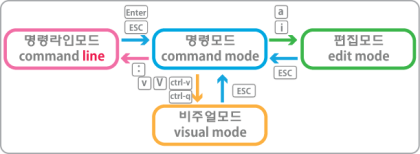
vim filenamei
->
esc
->
:q # quit
:w # write(save)
:wq # write & quit
:q! # force quiti: 커서 앞, insert
a: 커서 뒤, append
o
/
shift+8(*)
gg
g
G
:10(행)
dd
x
dw
yw
r
u
ctrl+r
%s/old/new/g (old → new로 전부 변경)
1,3s/old/new/g(1~3번째 라인까지 변경)
퍼미션 이해 및 사용
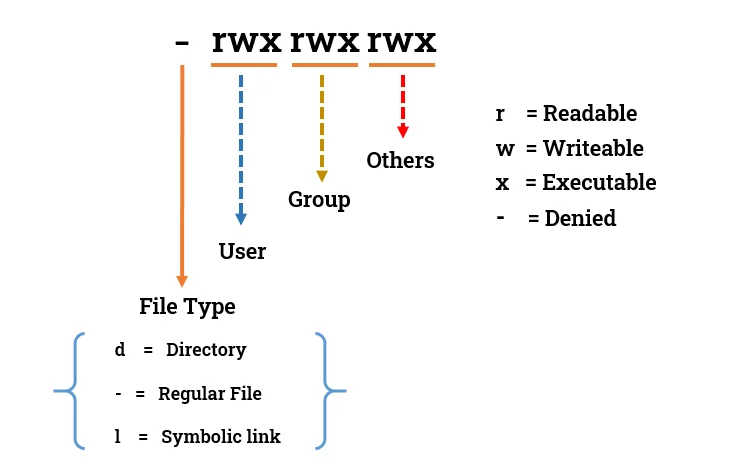
- 권한 확인
ls **-l**- ```bash
[user@localhost dira]$ ls -l
total 32 - rw-r--r--. 1 user user 89 Sep 19 16:28 example1.txt
- rw-r--r--. 1 user user 84 Sep 19 16:39 example2.txt
- rw-r--r--. 1 user user 106 Sep 19 16:49 example3.txt
- rw-r--r--. 1 user user 158 Sep 19 11:29 file3
- rw-r--r--. 1 user user 158 Sep 19 11:30 file4
- rw-r--r--. 1 user user 15 Sep 22 11:42 fileA
- rw-r--r--. 1 user user 158 Sep 19 11:31 hosts
- rw-r--r--. 1 user user 1935 Sep 22 13:05 passwd
- permissions owner group
- 파일과 디렉토리 접근 권한
- 디렉토리
- r: 디렉토리 내부 파일 정보 확인 가능
- w: 디렉토리 내 파일 추가/삭제 가능
- x: 디렉토리 접근 권한. cd 명령어 실행 가능
- 디렉토리는 실행 권한이 있어야 읽기나 쓰기가 가능함
- 디렉토리
- umask
- 자동으로 설정되는 접근권한 관리
[user@localhost dira]$ sudo useradd testuser

We trust you have received the usual lecture from the local System
Administrator. It usually boils down to these three things:

    #1) Respect the privacy of others.
    #2) Think before you type.
    #3) With great power comes great responsibility.

[sudo] password for user:
[user@localhost dira]$ sudo useradd testuser2
[user@localhost dira]$ sudo usermod -aG wheel testuser
[user@localhost dira]$ id
uid=1000(user) gid=1000(user) groups=1000(user),10(wheel) context=unconfined_u:unconfined_r:unconfined_t:s0-s0:c0.c1023
[user@localhost dira]$ cd ~
[user@localhost ~]$ ls /
afs  boot  etc   lib    media  opt   root  sbin  sys  usr  work
bin  dev   home  lib64  mnt    proc  run   srv   tmp  var
[user@localhost ~]$ touch /tmp/testfile
[user@localhost ~]$ mkdir /tmp/testdir
[user@localhost ~]$ ls -l /tmp/testfile
-rw-r--r--. 1 user user 0 Sep 22 14:28 /tmp/testfile
[user@localhost ~]$ ls -dl /tmp/testdir
drwxr-xr-x. 2 user user 6 Sep 22 14:28 /tmp/testdir
[user@localhost ~]$ chmod 640 /tmp/testfile
[user@localhost ~]$ ls -l /tmp/testfile
-rw-r-----. 1 user user 0 Sep 22 14:28 /tmp/testfile
[user@localhost ~]$ chmod 751 /tmp/testdir
[user@localhost ~]$ ls -dl /tmp/testdir
drwxr-x--x. 2 user user 6 Sep 22 14:28 /tmp/testdir
[user@localhost ~]$ chown :wheel /temp/testfile
chown: cannot access '/temp/testfile': No such file or directory
[user@localhost ~]$ chown :wheel /tmp/testfile
[user@localhost ~]$ chown :wheel /tmp/testdir
[user@localhost ~]$ ls -l /tmp/testfile
-rw-r-----. 1 user wheel 0 Sep 22 14:28 /tmp/testfile
[user@localhost ~]$ ls -dl /tem/testdir
ls: cannot access '/tem/testdir': No such file or directory
[user@localhost ~]$ ls -dl /tmp/testdir
drwxr-x--x. 2 user wheel 6 Sep 22 14:28 /tmp/testdir
[user@localhost ~]$ vim /tmp/testfile
[user@localhost ~]$ vim /tmp/testfile
[user@localhost ~]$ cat /tmp/testfile
hello, bye
[user@localhost ~]$ sudo passwd testuser
[sudo] password for user:
Changing password for user testuser.
New password:
BAD PASSWORD: The password contains the user name in some form
Retype new password:
passwd: all authentication tokens updated successfully.
[user@localhost ~]$ sudo passwd testuser2
Changing password for user testuser2.
New password:
BAD PASSWORD: The password contains the user name in some form
Retype new password:
Sorry, passwords do not match.
passwd: Authentication token manipulation error
[user@localhost ~]$ sudo passwd testuser2
Changing password for user testuser2.
New password:
BAD PASSWORD: The password contains the user name in some form
Retype new password:
passwd: all authentication tokens updated successfully.
[user@localhost ~]$ su - testuser
Password:
[testuser@localhost ~]$ id
uid=1001(testuser) gid=1001(testuser) groups=1001(testuser),10(wheel) context=unconfined_u:unconfined_r:unconfined_t:s0-s0:c0.c1023
[testuser@localhost ~]$ ls -l /tmp/testfile
-rw-r-----. 1 user wheel 11 Sep 22 14:33 /tmp/testfile
[testuser@localhost ~]$ cat /tmp/testfile
hello, bye
[testuser@localhost ~]$ vim /tmp/testfile
[testuser@localhost ~]$ vim /tmp/testfile
[testuser@localhost ~]$ exit
logout
[user@localhost ~]$ su - testuser2
Password:
[testuser2@localhost ~]$ id
uid=1002(testuser2) gid=1002(testuser2) groups=1002(testuser2) context=unconfined_u:unconfined_r:unconfined_t:s0-s0:c0.c1023
[testuser2@localhost ~]$ ls -l /tmp/testfile
-rw-r-----. 1 user wheel 11 Sep 22 14:33 /tmp/testfile
[testuser2@localhost ~]$ cat /tmp/testfile
cat: /tmp/testfile: Permission denied
[testuser2@localhost ~]$ vim /tmp/testfile
[testuser2@localhost ~]$ exit
logout
[user@localhost ~]$ ls -ld /tmp/testdir/
drwxr-x--x. 2 user wheel 6 Sep 22 14:28 /tmp/testdir/
[user@localhost ~]$ ls -l /tmp/testdir/
total 0
[user@localhost ~]$ touch /tmp/testdir/newfile
[user@localhost ~]$ ls -l /tmp/testdir/
total 0
-rw-r--r--. 1 user user 0 Sep 22 14:43 newfile
[user@localhost ~]$ rm /tmp/testdir/newfile
[user@localhost ~]$ ls -l /tmp/testdir/
total 0
[user@localhost ~]$ su - testuser
Password:
[testuser@localhost ~]$ ls -l /tmp/testdir
total 0
[testuser@localhost ~]$ exit
logout
[user@localhost ~]$ touch /tmp/testdir/newfile
[user@localhost ~]$ ls -l /tmp/testdir/
total 0
-rw-r--r--. 1 user user 0 Sep 22 14:45 newfile
[user@localhost ~]$ su - testuser
Password:
[testuser@localhost ~]$ ls -l /tmp/testdir
total 0
-rw-r--r--. 1 user user 0 Sep 22 14:45 newfile
[testuser@localhost ~]$ ls -dl /tmp/testdir
drwxr-x--x. 2 user wheel 21 Sep 22 14:45 /tmp/testdir
[testuser@localhost ~]$ touch /tmp/testdir/testuser-file
touch: cannot touch '/tmp/testdir/testuser-file': Permission denied
[testuser@localhost ~]$ mkdir /tmp/testdir/dirA
mkdir: cannot create directory ‘/tmp/testdir/dirA’: Permission denied
[testuser@localhost ~]$ rm /tmp/testdir/newfile
rm: remove write-protected regular empty file '/tmp/testdir/newfile'? y
rm: cannot remove '/tmp/testdir/newfile': Permission denied
[testuser@localhost ~]$ exit
logout
[user@localhost ~]$ su - testuser2
Password:
[testuser2@localhost ~]$ ls -l /tmp/testdir
ls: cannot open directory '/tmp/testdir': Permission denied
[testuser2@localhost ~]$ touch /tmp/testdir/fileA
touch: cannot touch '/tmp/testdir/fileA': Permission denied
[user@localhost ~]$ ls -n
total 0
drwxr-xr-x. 2 1000 1000 6 Sep 19 08:10 Desktop
drwxr-xr-x. 2 1000 1000 6 Sep 19 08:10 Documents
drwxr-xr-x. 2 1000 1000 6 Sep 19 08:10 Downloads
drwxr-xr-x. 2 1000 1000 6 Sep 19 08:10 Music
drwxr-xr-x. 2 1000 1000 6 Sep 19 08:10 Pictures
drwxr-xr-x. 2 1000 1000 6 Sep 19 08:10 Public
drwxr-xr-x. 2 1000 1000 6 Sep 19 08:10 Templates
drwxr-xr-x. 2 1000 1000 6 Sep 19 08:10 Videos- -n: uid, gid 출력
- 퍼미션 결정 과정
- uid → gid → others
[user@localhost ~]$ umask
0022
# 기본적으로 제외할 권한 설정
# 읽기, 쓰기만 고려
[user@localhost ~]$ touch before-umask
[user@localhost ~]$ ls -l before-umask
-rw-r--r--. 1 user user 0 Sep 22 15:25 before-umask
[user@localhost ~]$ mkdir before-umask-dir
[user@localhost ~]$ ls -ld before-umask-dir
drwxr-xr-x. 2 user user 6 Sep 22 15:26 before-umask-dir
[user@localhost ~]$ ls -l before-umask-dir
total 0
[user@localhost ~]$ umask 026 **# 현재 환경(쉘)에서만 적용. 재부팅 시 원복됨**
[user@localhost ~]$ umask
0026
[user@localhost ~]$ touch after-umask
[user@localhost ~]$ mkdir after-umask-dir
[user@localhost ~]$ ls -l after-umask
-rw-r-----. 1 user user 0 Sep 22 15:27 after-umask
[user@localhost ~]$ ls -ld after-umask-dir
drwxr-x--x. 2 user user 6 Sep 22 15:27 after-umask-dir- 영구 설정 시 홈 디렉토리 환경설정 파일에서 선언
- 그러나 필요에 따라 chmod로 각 파일의 권한을 변경하는 것이 일반적임
chmod [-R]
# -R 옵션 사용 시 숫자로 권한 부여하지 않는 것을 권장
# 하위 디렉토리 실행 권한 문제가 발생할 수 있음
chmod -R a=rwX testdir # 권장
[user@localhost ~]$ ls -l testdir
total 0
drwxr-x--x. 2 user user 6 Sep 22 15:48 dirA
drwxr-x--x. 2 user user 6 Sep 22 15:48 dirB
-rw-r-----. 1 user user 0 Sep 22 15:48 fileA
-rw-r-----. 1 user user 0 Sep 22 15:48 fileB
[user@localhost ~]$ chmod -R a=rwX testdir
[user@localhost ~]$ ls -l testdir
total 0
drwxrwxrwx. 2 user user 6 Sep 22 15:48 dirA
drwxrwxrwx. 2 user user 6 Sep 22 15:48 dirB
-rw-rw-rw-. 1 user user 0 Sep 22 15:48 fileA
-rw-rw-rw-. 1 user user 0 Sep 22 15:48 fileB- a=rwX
- 대문자 X 설정
- -R 옵션 사용 시 하위 디렉토리에 실행 권한을 부여 하면서 하위 파일에 rw 권한을 설정
쉘 명령어 사용
- 쉘 메타문자
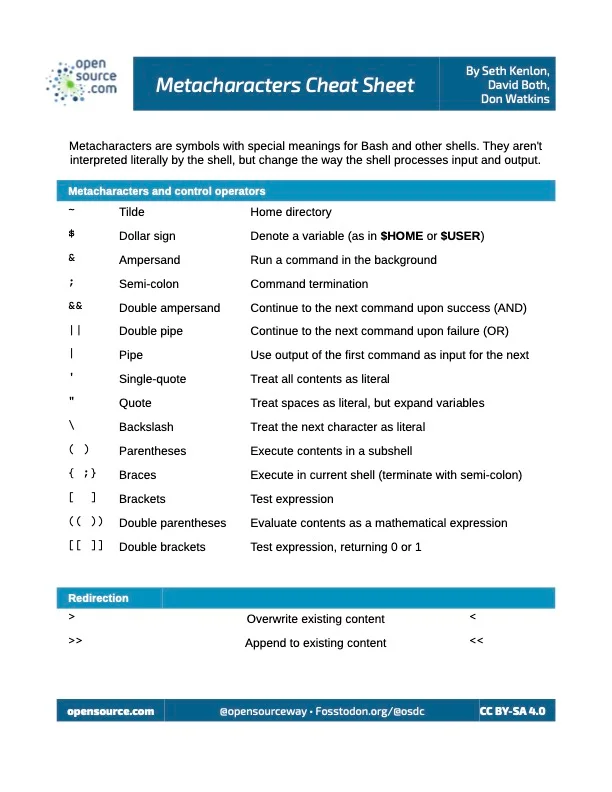
[user@localhost ~]$ echo "$PATH"
/home/user/.local/bin:/home/user/bin:/usr/local/bin:/usr/local/sbin:/usr/bin:/usr/sbin
[user@localhost ~]$ echo "\$PATH"
$PATH
[user@localhost ~]$ echo ${PATH}
/home/user/.local/bin:/home/user/bin:/usr/local/bin:/usr/local/sbin:/usr/bin:/usr/sbin
[user@localhost ~]$ echo $(PATH)
bash: PATH: command not found...

[user@localhost ~]$ echo $PATH
/home/user/.local/bin:/home/user/bin:/usr/local/bin:/usr/local/sbin:/usr/bin:/usr/sbin
---
[user@localhost ~]$ echo date
date
[user@localhost ~]$ echo $(date)
Mon Sep 22 04:32:06 PM KST 2025
[user@localhost ~]$ echo `date`
Mon Sep 22 04:32:29 PM KST 2025
[user@localhost ~]$ echo "$(date)"
Mon Sep 22 04:33:31 PM KST 2025
[user@localhost ~]$ echo '$(date)'
$(date)- 방향재지정(redirection) 메타문자


[user@localhost ~]$ ls
after-umask      before-umask-dir  Downloads  Pictures   testdir
after-umask-dir  Desktop           Music      Public     Videos
before-umask     Documents         passwd     Templates
[user@localhost ~]$ touch fileA
[user@localhost ~]$ ls > fileA
[user@localhost ~]$ cat fileA
after-umask
after-umask-dir
before-umask
before-umask-dir
Desktop
Documents
Downloads
fileA
Music
passwd
Pictures
Public
Templates
testdir
Videos
: 기존 파일 덮어씀
: 붙여 씀
[user@localhost ~]$ echo "Hello"
Hello
[user@localhost ~]$ echo "Hello" > fileA
[user@localhost ~]$ cat fileA
Hello
[user@localhost ~]$ echo "Hello" >> fileA
[user@localhost ~]$ cat fileA
Hello
Hello- 파일 디스크립터
- 0: 입력
- 1: 출력
- 2: 에러
[user@localhost ~]$ ls /abc
ls: cannot access '/abc': No such file or directory
[user@localhost ~]$ ls /abc > fileA
ls: cannot access '/abc': No such file or directory
**[user@localhost ~]$ ls /abc 2> fileA**
[user@localhost ~]$ cat fileA
ls: cannot access '/abc': No such file or directory
[user@localhost ~]$ ls -l /abc fileA
ls: cannot access '/abc': No such file or directory
-rw-r-----. 1 user user 52 Sep 22 16:39 fileA
[user@localhost ~]$ ls -l /abc fileA > file_print
ls: cannot access '/abc': No such file or directory
[user@localhost ~]$ ls -l /abc fileA 2> file_err
-rw-r-----. 1 user user 52 Sep 22 16:39 fileA
[user@localhost ~]$ ls -l /abc fileA > file_print 2> file_err
[user@localhost ~]$ ls -l /abc fileA &> file_all # 둘다 저장
[user@localhost ~]$ ls -l /abc fileA > file_all 2>&1 # 상동- 파이프 문자
[user@localhost ~]$ ls /etc | grep passwd
passwd
passwd-
tee # 입력값을 출력 + 파일로 저장
sudo tee
[user@localhost ~]$ ls
after-umask      before-umask      Desktop    Downloads  file_all  file_err    Music   Pictures  Templates  Videos
after-umask-dir  before-umask-dir  Documents  fileA      fileB     file_print  passwd  Public    testdir
[user@localhost ~]$ ls > fileA
[user@localhost ~]$ ls | tee fileB
after-umask
after-umask-dir
..
history # 이전에 실행한 명령어 확인
![line number] # 해당 라인 명령어 다시 실행
/etc/profile : 모든 사용자. 부팅 시 적용
~/.profile: 개별 사용자 홈 디렉토리. 쉘을 열 때 적용

'OS' 카테고리의 다른 글
| 시스템 보안(1) (0) | 2025.11.18 |
|---|---|
| Shell Script (0) | 2025.11.06 |
| 리눅스 운영 vol.2 (0) | 2025.10.21 |
| 리눅스 운영 vol.1 (0) | 2025.10.13 |
| 운영체제 개요 ch.01~ch.05 (0) | 2025.09.18 |